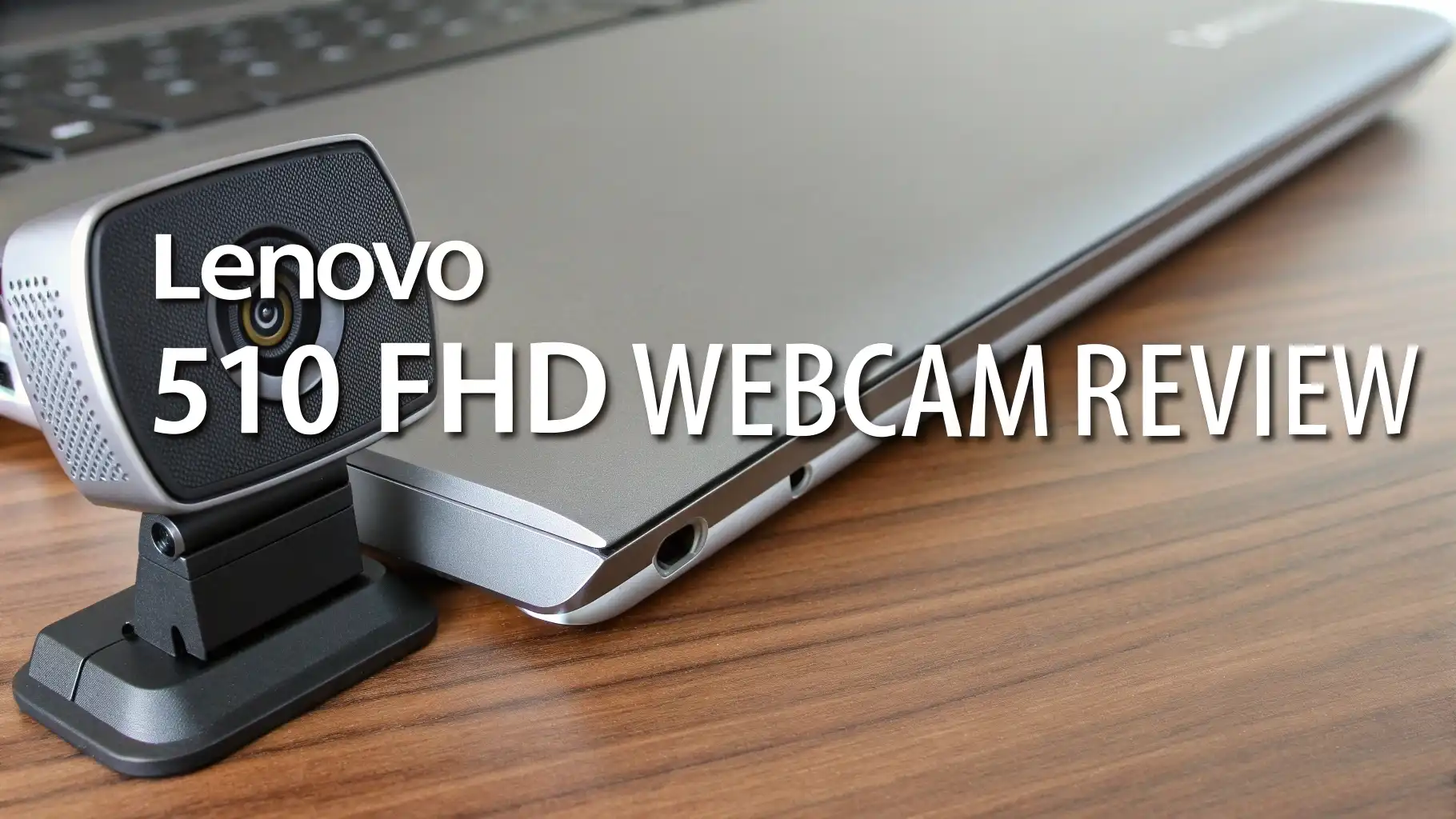
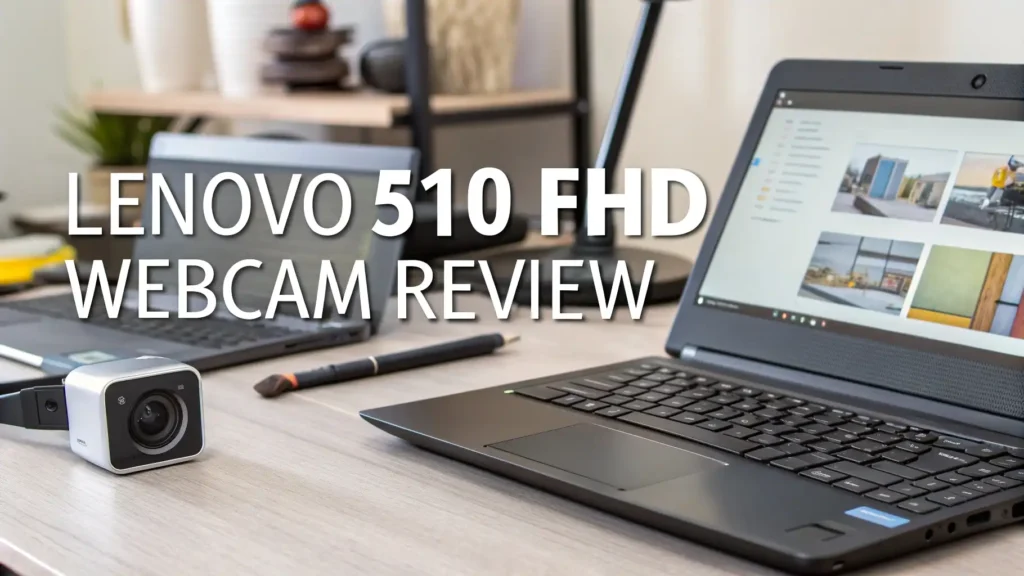
Lenovo 510 FHD Webcam Review: A Complete Guide in 2026
Looking for a reliable webcam that won’t break the bank? The Lenovo 510 FHD Webcam has been making waves in the video conferencing market.
This device promises crystal clear video quality combined with smart features like Windows Hello facial recognition. But does it really deliver on these promises?
This review will walk you through everything you need to know about this webcam. You’ll discover its strengths, weaknesses, and whether it’s the right fit for your needs.
Key Takeaways:
- Full HD Resolution: The webcam captures video at 1920 x 1080 pixels at 30 frames per second, providing sharp and clear images for video calls and streaming.
- Windows Hello Compatibility: Built-in facial recognition technology lets you sign into your Windows computer without typing passwords, making login quick and secure.
- Wide Angle Lens: The 95-degree field of view captures more space, making it perfect for group meetings or showing your entire workspace during calls.
- Flexible Positioning: Features 360-degree rotation with pan and tilt adjustments, allowing you to find the perfect angle for every video call.
- Dual Microphones: Two built-in microphones capture clear audio from multiple directions, reducing the need for additional audio equipment.
- Privacy Protection: Includes a sliding privacy shutter that physically covers the lens when not in use, giving you peace of mind about your privacy.

Lenovo 510 FHD Webcam Overview
The Lenovo 510 FHD Webcam represents a solid middle ground in the webcam market. This device caters to professionals who need reliable video quality without spending a fortune. The webcam ships with a simple plug and play design. You don’t need to install complex drivers or software to get started. Just connect it to your computer’s USB port and you’re ready to go.
The device features a sleek gray design that looks professional on any desk setup. The build quality feels sturdy enough for daily use. The 1/2.9 inch RGB sensor captures natural colors and handles different lighting conditions reasonably well. This webcam works with popular video conferencing platforms like Zoom, Microsoft Teams, and Google Meet. The 4x digital zoom feature lets you adjust framing without moving the camera physically.
Video Quality and Performance
Video quality is where the Lenovo 510 FHD truly shines for its price point. The webcam delivers Full HD 1080p resolution that looks crisp and professional in most lighting conditions. Colors appear natural and skin tones render accurately without looking washed out. The camera performs best in well-lit environments where it can capture detailed images.
However, performance drops in low light situations. The image becomes grainy and darker than ideal. The temporal domain noise reduction technology helps minimize this issue but doesn’t completely eliminate it. The 30 frames per second output provides smooth video for standard video calls. This frame rate works perfectly for business meetings and casual streaming.
The auto light correction feature adjusts exposure automatically when lighting changes. This helps maintain consistent image quality throughout your calls. The camera also includes auto white balance that adapts to different light temperatures. These automatic features make the webcam easy to use for people who don’t want to fiddle with manual settings.
Audio Quality with Dual Microphones
The built-in dual microphones provide surprisingly good audio quality. These microphones capture your voice clearly from a reasonable distance. You can sit about three feet away and still sound clear during calls. The dual microphone setup helps reduce background noise through spatial audio processing. This means the webcam focuses on sounds coming from your direction while minimizing ambient noise.
The audio quality isn’t studio grade but works well for video conferencing. Your voice sounds natural without excessive processing artifacts. The microphones pick up a decent frequency range that makes speech easy to understand. Background keyboard typing and mouse clicks remain relatively quiet in the recording.
However, the microphones struggle in very noisy environments. If you work in a busy coffee shop or shared office space, you might want to use a dedicated microphone. The built-in mics work best in quiet to moderately noisy settings. They provide good value for everyday video calls where you don’t need professional audio quality.
Top 3 Alternatives for Lenovo 510 FHD Webcam


Windows Hello Facial Recognition
The Windows Hello integration stands out as one of the webcam’s best features. This biometric authentication system uses infrared technology to recognize your face. You can sign into your Windows 10 or Windows 11 computer just by sitting in front of the camera. The recognition happens in less than two seconds in most cases.
The facial recognition works reliably in different lighting conditions. It recognizes you even when wearing glasses or changing your hairstyle. The system uses 3D depth sensing to create a detailed map of your facial features. This makes it much more secure than simple 2D photo recognition.
Setting up Windows Hello takes about two minutes. The system guides you through capturing your face from different angles. Once configured, you can forget about typing passwords every time you start your computer. The convenience factor alone makes this feature worth having for many users.
Wide Angle Lens and Field of View
The 95-degree wide angle lens provides an expansive field of view. This wide perspective captures more of your surroundings compared to standard webcams. You can easily fit two or three people in the frame for group calls. The wide angle also shows more of your workspace, which helps when demonstrating products or explaining visual concepts.
The lens doesn’t introduce noticeable distortion at the edges. Straight lines remain relatively straight across the entire frame. This natural perspective makes the video look professional without a fish-eye effect. The wide view works particularly well for home office setups where you want to show your entire desk area.
You can adjust the framing using the 4x digital zoom feature. This zoom lets you crop into the image to focus on specific areas. However, digital zoom reduces image quality as you zoom in further. It works best at 2x or less where quality degradation remains minimal.
360-Degree Rotation and Adjustability
Physical flexibility is a strong point for the Lenovo 510 FHD. The camera head rotates a full 360 degrees on its base. This rotation lets you quickly switch between showing your face and demonstrating something on your desk. The movement feels smooth without being too loose or too stiff.
The tilt adjustment ranges from looking slightly down to angled upward. This vertical adjustment helps you achieve the perfect angle regardless of your monitor height. The pan function moves the camera left and right smoothly. These adjustment options mean you can position the camera exactly where you need it.
The mounting clip fits securely on monitors of various thicknesses. It holds the webcam steady without wobbling during use. The base also includes tripod mounting threads if you prefer to use it on a stand. This mounting flexibility makes the webcam suitable for different desk configurations.
Privacy Shutter and Security Features
Privacy concerns are real in our connected world. The Lenovo 510 FHD addresses these worries with a physical privacy shutter. This sliding cover blocks the lens completely when you’re not using the webcam. Unlike software solutions, a physical shutter provides absolute certainty that no one can see through your camera.
The shutter slides smoothly and stays in position reliably. It doesn’t accidentally open or close during normal handling. The black color of the shutter blends well with the camera housing, maintaining the professional appearance. You can easily tell at a glance whether the shutter is open or closed.
The camera also supports UVC (USB Video Class) compliance, meaning it works without installing special drivers. This reduces security risks associated with proprietary software. The webcam receives power through the USB connection and doesn’t require external power sources. This simple design minimizes potential security vulnerabilities.
Setup Process and Compatibility
Getting started with the Lenovo 510 FHD is straightforward. The webcam uses a plug and play design that works immediately after connection. Simply plug the USB cable into your computer and most applications will detect it automatically. Windows 10 and 11 recognize the device instantly without additional drivers.
The webcam works with both USB 2.0 and USB 3.0 ports. Using a USB 3.0 port provides better performance and faster data transfer. The included cable measures about 1.8 meters long, giving you flexibility in positioning. This length works well for most desk setups without needing extension cables.
Compatibility extends across multiple platforms and applications. The webcam functions perfectly with Zoom, Microsoft Teams, Skype, Google Meet, and other popular video conferencing tools. It also works well for streaming on platforms like YouTube and Twitch. The universal compatibility makes this webcam a versatile choice for different use cases.
Pros and Cons of the Lenovo 510 FHD
Let’s break down the advantages this webcam brings to your setup. The excellent price to performance ratio makes it accessible for budget-conscious buyers. The Windows Hello support adds security convenience that many competitors lack at this price. The wide angle lens captures more than standard webcams, enhancing group call experiences.
The dual microphones eliminate the need for separate audio equipment in many situations. The physical privacy shutter provides peace of mind about your security. The flexible mounting and adjustment options work with various desk configurations. The plug and play setup means anyone can start using it immediately.
On the downside, the webcam struggles in low light conditions more than some competitors. The 30 fps frame rate feels limiting if you want smoother motion for streaming. The digital zoom reduces quality noticeably beyond 2x magnification. Some users report the mount feeling less secure on thinner monitor bezels.
Best Use Cases for This Webcam
The Lenovo 510 FHD excels in business video conferencing scenarios. The professional image quality and reliable Windows Hello integration make it perfect for corporate environments. Remote workers will appreciate the combination of good video quality and built-in microphones. The wide angle lens benefits educators conducting online classes who need to show demonstrations.
Content creators on a budget can use this webcam for casual streaming and recording. The quality suffices for vlogs, tutorials, and commentary videos where ultra-high definition isn’t required. Small business owners conducting virtual meetings will find the feature set adequate. The webcam also works well for telehealth appointments where clear communication matters most.
Families wanting to stay connected with relatives will enjoy the wide field of view for group calls. The easy setup makes it accessible for less tech-savvy users. Students attending online lectures benefit from the reliable video quality and good microphone performance.
Comparison with Similar Webcams
Against the Logitech C920, a long-time market favorite, the Lenovo 510 FHD holds its own. Both offer 1080p resolution at similar price points. The Lenovo adds Windows Hello support that the C920 lacks. However, the Logitech typically performs slightly better in low light conditions.
Compared to the NexiGo N60, another budget option, the Lenovo offers better build quality. The Windows Hello feature gives it an edge for Windows users. The NexiGo provides software controls that some users prefer for fine-tuning image settings. Both offer good value but serve slightly different priorities.
The Logitech Brio 101 competes directly with similar features and pricing. The Brio has slightly better color reproduction in challenging lighting. The Lenovo counters with its wider field of view. Both represent solid choices in the budget 1080p category. Your choice depends on whether you prioritize Windows Hello support or broader software compatibility.
Maintenance and Long-Term Reliability
Keeping your Lenovo 510 FHD in good condition requires minimal effort. Clean the lens regularly using a microfiber cloth to remove dust and fingerprints. Avoid using harsh chemicals that might damage the lens coating. Keep the privacy shutter clean so it slides smoothly.
The webcam’s build quality suggests good long-term durability with proper care. The plastic housing resists minor bumps and normal desk wear. Users report the device functioning reliably after months of daily use. The USB connection remains stable without developing connection issues over time.
Store the webcam properly when not in use to prevent damage. If you travel with it, consider a protective case to prevent scratches. The mount mechanism maintains its grip strength well over time. Regular firmware updates through Windows Update help maintain compatibility with new applications.
Where to Buy and Pricing
The Lenovo 510 FHD Webcam is available through multiple retailers. Amazon typically offers the best prices with frequent deals and promotions. The webcam usually retails around $60 to $70, making it an affordable option. Prices sometimes drop during sales events like Prime Day or Black Friday.
You can also purchase directly from Lenovo’s official website. Buying direct sometimes includes bundle deals with other Lenovo accessories. Major electronics retailers like Best Buy also stock this webcam. Check multiple sources to find the best current price and shipping options.
The warranty coverage typically includes one year of protection against defects. Keep your purchase receipt to facilitate any warranty claims. Some retailers offer extended warranty options for additional peace of mind.
Frequently Asked Questions
Does the Lenovo 510 FHD Webcam work with Mac computers?
Yes, the Lenovo 510 FHD works with Mac computers through the standard USB connection. However, the Windows Hello facial recognition feature only functions with Windows 10 and Windows 11 operating systems. Mac users can still enjoy the excellent 1080p video quality and dual microphones. The webcam appears as a standard USB video device in macOS and works with FaceTime, Zoom, and other Mac-compatible video applications.
Can I use this webcam for streaming on Twitch or YouTube?
Absolutely! The Lenovo 510 FHD provides sufficient quality for streaming on platforms like Twitch and YouTube. The 1080p resolution at 30 fps works well for talking-head streams and casual gaming content. The dual microphones offer decent audio quality, though serious streamers might want to upgrade to a dedicated microphone later. The webcam integrates smoothly with popular streaming software like OBS Studio and Streamlabs.
How does the 4x digital zoom work?
The 4x digital zoom feature crops into the camera’s sensor to make subjects appear closer. You control the zoom through compatible software applications that support digital zoom controls. The zoom works best at 2x or lower magnification where image quality remains good. Higher zoom levels introduce pixelation and reduce sharpness. This feature proves useful for focusing attention on specific objects or adjusting framing without physically moving the camera.
Is the privacy shutter durable enough for daily use?
The physical privacy shutter is built for regular use and feels quite durable. It slides smoothly without feeling flimsy or loose. Many users report the shutter functioning perfectly after months of daily opening and closing. The mechanism doesn’t wear out quickly like some cheaper webcams. The shutter provides reliable privacy protection and remains one of the webcam’s most appreciated features among users.
What lighting conditions work best with this webcam?
The Lenovo 510 FHD performs optimally in well-lit environments with natural or artificial light. Front lighting produces the best results, illuminating your face evenly without harsh shadows. The webcam struggles in dim lighting where images become grainy and colors lose accuracy. For best results, position yourself facing a window during daytime or use a desk lamp to illuminate your face. Avoid strong backlighting which can create silhouette effects.