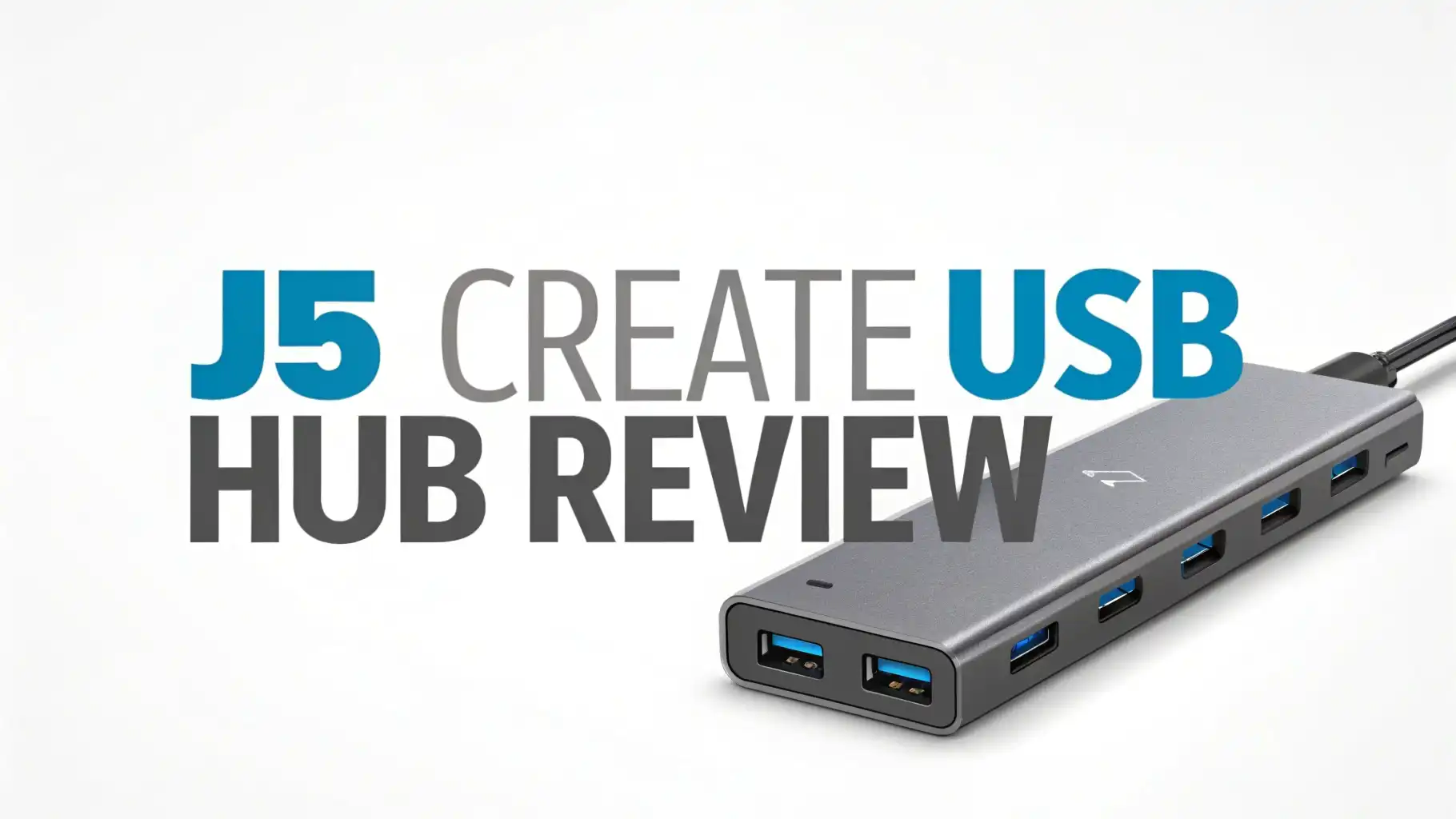
J5 Create USB Hub Review: A Comprehensive Guide
Are you tired of running out of USB ports on your laptop? Do you want to connect multiple devices without the frustration of constantly unplugging and replugging?
You are in the right place. This detailed review explores j5create USB hubs and helps you find the perfect connectivity solution for your setup.
This review covers everything you need to know about their best USB hubs available on Amazon. You will discover which models work best for your specific needs.
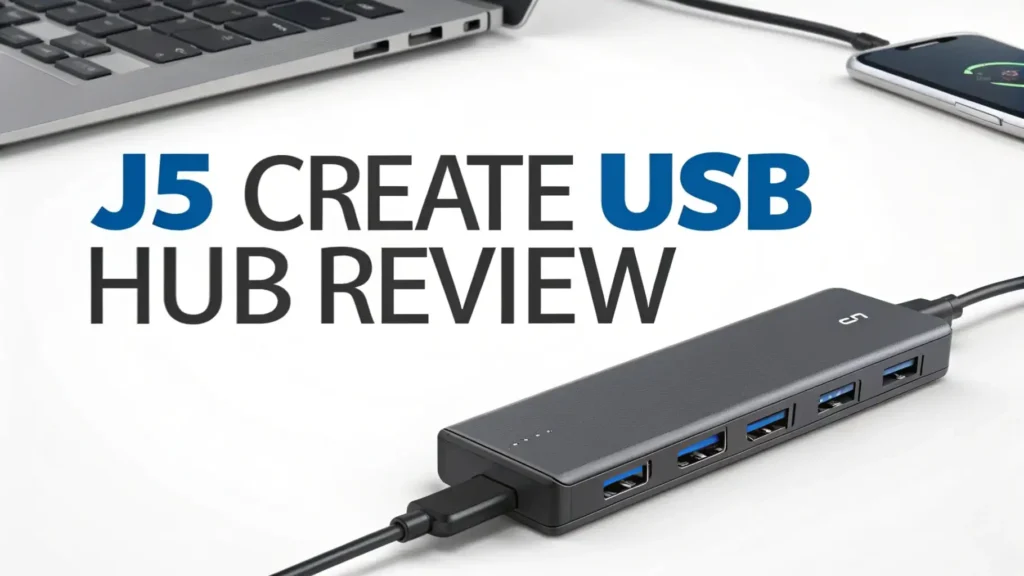
Key Takeaways:
- Performance and Speed: Most j5create hubs support USB 3.0 or higher speeds, delivering data transfer rates up to 5Gbps or 10Gbps depending on the model. This means you can transfer large files in seconds rather than minutes. The brand focuses on maintaining consistent speeds across all connected ports.
- Build Quality and Durability: j5create uses durable materials including aluminum housings and braided cables on many models. Users report these hubs lasting years with regular use. The eco-friendly line uses recycled materials without compromising performance.
- Compatibility Range: These hubs work seamlessly with Mac, Windows, Chromebook, and Linux systems. No driver installation required for most models. They support both USB-C and traditional USB-A connections depending on the product.
- Power Delivery Options: Many j5create hubs include Power Delivery (PD) pass-through charging capabilities up to 100W. This feature lets you charge your laptop while using the hub. Powered models come with dedicated adapters for high-power devices.
- Price to Performance Ratio: j5create hubs typically cost between $20 to $120 depending on features and port count. They offer competitive pricing compared to premium brands while maintaining solid quality standards. The budget-friendly options provide excellent value for basic connectivity needs.

Understanding j5create as a Brand
j5create launched in 2010 with headquarters in Georgia, United States. The company specializes in high-tech consumer electronics and connectivity solutions. They operate four corporate offices globally including locations in the United States, Canada, Netherlands, and Taiwan.
The brand earned an A+ rating from the Better Business Bureau. This rating reflects their commitment to customer service and product quality. They focus on creating innovative connectivity solutions for modern computing needs.
j5create products emphasize ease of use and plug-and-play functionality. Most models work immediately without software installation. The company continues expanding its product line to meet evolving technology standards including USB4 and Thunderbolt compatibility.
USB-C Multi-Port Hub with 4K HDMI Support
The JCD373 model serves as one of j5create’s most popular USB-C hubs. This compact hub transforms a single USB-C port into multiple connection options. You get 4K HDMI output, two USB 3.1 ports, SD and microSD card readers, plus a 3.5mm audio jack.
The 4K HDMI port supports resolutions up to 3840×2160 at 30Hz. This specification works perfectly for presentations or extending your display. The two USB 3.1 ports deliver 5Gbps transfer speeds for external drives and peripherals.
Card readers support SD and microSD formats simultaneously. Photographers and content creators appreciate this dual-slot design. The 3.5mm audio jack provides convenient headphone or speaker connectivity without using another port.
The hub includes 60W Power Delivery pass-through charging. Your laptop charges while you use all hub features. The aluminum housing dissipates heat effectively during extended use.
This model measures just 4.5 inches long and weighs under 3 ounces. The portable design fits easily in laptop bags. Users report reliable performance with MacBook Pro, iPad Pro, and Dell XPS systems.
Eco-Friendly 4-Port USB-C Hub

The JCH341EW represents j5create’s commitment to environmental sustainability. This eco-friendly hub uses recycled materials in its construction. The white braided cable adds durability while reducing environmental impact.
You get four USB Type-A ports with 10Gbps SuperSpeed capability. This speed doubles the performance of standard USB 3.0 connections. All four ports work simultaneously without bandwidth reduction.
The hub supports data transfer rates up to 1250MB per second. Large file transfers complete quickly whether you connect external SSDs or traditional hard drives. The plug-and-play design requires no software installation.
This model works with MacBook Pro, MacBook Air, iPad Pro, Mac mini, and various Windows devices. The universal compatibility makes it versatile for different setups. Users appreciate the clean white aesthetic that matches modern laptop designs.
The compact form factor measures approximately 4 inches in length. The attached cable provides flexibility in positioning the hub on your desk. Reviews highlight the solid build quality despite the budget-friendly price point.
Top 3 Alternatives for j5create USB Hubs


USB Type-C to 7-Port USB 3.0 Hub with Power Adapter
![j5create USB Type-C to 7-Port USB 3.0 Data Hub with 3 ft Extended Cale [20W Power Adapter Included] for Mac, MacBook, Windows, Laptop, Surface, XPS, Chromebook, PC (JCH377)](https://gadgetglimpses.blog/wp-content/plugins/aawp/public/image.php?url=YUhSMGNITTZMeTl0TG0xbFpHbGhMV0Z0WVhwdmJpNWpiMjB2YVcxaFoyVnpMMGt2TXpGakxUSkNNVWR0T1V3dVgxTk1NVFl3WHk1cWNHYz18MTc3NDQyNjEwMw=)
The JCH377 model offers extensive connectivity with seven USB 3.0 ports. This powered hub includes a 20W power adapter to support high-power devices. The extended 3-foot cable provides placement flexibility on your desk.
Each port delivers 5Gbps data transfer speeds. You can connect multiple external drives, printers, and peripherals simultaneously. The dedicated power supply ensures stable performance even with power-hungry devices connected.
This hub works with Mac, MacBook, Windows laptops, Surface devices, and Chromebooks. The wide compatibility covers most computing environments. Users report reliable performance in both home office and professional settings.
The aluminum housing provides durability and efficient heat dissipation. The hub stays cool during extended operation. Blue LED indicators show power status for each port and the hub itself.
Customers appreciate the generous port spacing. Larger USB devices fit without blocking adjacent ports. The hub measures approximately 7 inches wide, requiring adequate desk space.
4-Port Powered USB 3.0 Data Hub
![j5create 4-Port Powered USB 3.0 Data Hub with 2 ft Extended Cable [15W Power Adapter Included] for Mac, MacBook, Windows, Laptop, Surface, XPS, PC (JUH340)](https://gadgetglimpses.blog/wp-content/plugins/aawp/public/image.php?url=YUhSMGNITTZMeTl0TG0xbFpHbGhMV0Z0WVhwdmJpNWpiMjB2YVcxaFoyVnpMMGt2TkRFMmJVbFhTRVZPUTB3dVgxTk1NVFl3WHk1cWNHYz18MTc3NDQyNjEwMw=)
The JUH340 provides four USB 3.0 ports with a dedicated 15W power adapter. This compact powered hub handles devices that draw more current than unpowered hubs can supply. The 2-foot extended cable offers convenient positioning.
The included 15W power adapter supports external hard drives and other power-intensive peripherals. You avoid the power limitations of bus-powered hubs. All four ports maintain full USB 3.0 speeds up to 5Gbps.
This hub works seamlessly with Mac, MacBook, Windows systems, laptops, and desktops. The universal compatibility makes it suitable for various environments. Users report consistent performance across different operating systems.
The black housing features understated styling that blends with most setups. LED indicators show connection status at a glance. The hub measures approximately 4 inches making it compact enough for travel.
Reviews highlight the reliable power delivery to connected devices. The hub handles multiple devices simultaneously without performance drops. The budget-friendly price makes it accessible for basic expansion needs.
USB-C Multi-Port Hub with Power Delivery and Card Readers

The JCD373EW combines multiple functions in one compact package. This model includes 4K HDMI output, two USB-A 5Gbps ports, 100W PD charging, SD and Micro SD card readers, plus 3.5mm audio. The comprehensive feature set covers most connectivity needs.
The 100W Power Delivery pass-through charges your laptop at full speed while using all hub features. This capability supports MacBook Pro and other high-power laptops. You eliminate the need for separate charging adapters.
The 4K HDMI port extends your display to external monitors at 3840×2160 resolution. This specification works well for productivity and multimedia tasks. The video output remains stable during extended use.
Dual card readers support SD and microSD formats simultaneously. Content creators transfer photos and videos quickly from multiple memory cards. The audio jack provides convenient headphone connectivity without Bluetooth pairing.
This hub works with MacBook Pro, MacBook Air, iPad Pro, iMac, Surface, Dell XPS, ThinkPad, Galaxy devices, and more. The broad compatibility ensures it works with most modern USB-C devices. Users report excellent build quality with the aluminum housing.
How to Choose the Right j5create USB Hub
Selecting the perfect USB hub depends on your specific requirements. Consider how many devices you typically connect simultaneously. Count your peripherals including external drives, keyboards, mice, and card readers.
Determine whether you need powered or unpowered operation. Powered hubs include external adapters and support high-power devices. Unpowered hubs draw power from your computer and work best for low-power peripherals like keyboards and mice.
Check if you need video output capabilities. Models with HDMI ports let you connect external displays. Consider the resolution requirements for your monitor or projector.
Evaluate data transfer speed requirements. USB 3.0 offers 5Gbps speeds suitable for most tasks. USB 3.1 Gen 2 provides 10Gbps for faster external SSD performance. USB 3.2 and USB4 deliver even higher speeds for demanding workflows.
Consider Power Delivery needs for laptop charging. Hubs with PD pass-through let you charge while using peripherals. Check the wattage rating matches your laptop requirements.
Think about portability versus desktop use. Compact hubs travel easily in laptop bags. Larger powered hubs suit permanent desk setups better.
Common Features Across j5create USB Hubs
j5create hubs share several consistent design elements. Most models feature aluminum housing for durability and heat dissipation. The metal construction feels premium and withstands daily use.
Plug-and-play functionality works across all models. You connect the hub and start using it immediately. No driver installation or software setup required for standard operation.
The brand emphasizes universal compatibility. Their hubs work with Mac, Windows, Chrome OS, and Linux systems. This flexibility makes them suitable for mixed-device environments.
Many models include LED indicators for power and connection status. These lights help troubleshoot connectivity issues quickly. The indicators remain subtle without being distracting.
j5create provides attached cables on most hubs. This design eliminates the hassle of carrying separate cables. The cable length varies by model based on intended use cases.
Performance Comparison with Competitor Brands
j5create competes directly with brands like Anker, UGREEN, and Sabrent. In terms of build quality, j5create matches these competitors with solid aluminum construction on premium models. The performance remains consistent across brands at similar price points.
Anker hubs often feature more polished industrial design. They typically cost slightly more than equivalent j5create models. Both brands offer reliable performance and good customer support.
UGREEN products emphasize compact designs and travel-friendly form factors. Their pricing aligns closely with j5create. Users report similar reliability between the two brands.
Sabrent specializes in high-port-count powered hubs. Their flagship models offer 7 to 10 ports with individual switches. j5create focuses more on multifunction hubs combining USB ports with video output and card readers.
In terms of data transfer speeds, all major brands deliver rated USB 3.0 and USB 3.1 performance. Real-world testing shows minimal differences. The choice often comes down to specific feature requirements and personal preference.
Setting Up Your j5create USB Hub
Installation takes just seconds with plug-and-play operation. Connect the USB-C or USB-A cable from the hub to your computer. The system recognizes the hub automatically without software installation.
For powered hubs, connect the included power adapter first. Plug the adapter into a wall outlet before connecting devices. This sequence ensures stable power delivery to all ports.
Connect your peripherals to the hub ports. The order does not matter for most devices. External drives, keyboards, mice, and other USB devices work in any port.
For HDMI connections, attach your monitor cable to the hub’s HDMI port. Your operating system should detect the external display automatically. Adjust display settings through your system preferences if needed.
Card readers activate when you insert SD or microSD cards. Your computer mounts the cards as external drives. Access files through your normal file browser.
Test all connections by transferring files or using each peripheral. Verify that speeds match expectations for your USB version. Check that video output displays at the correct resolution.
Troubleshooting Common USB Hub Issues
If the hub does not power on, check the power adapter connection for powered models. Ensure the adapter plugs firmly into both the hub and wall outlet. Try a different outlet to rule out power issues.
When devices do not recognize, disconnect and reconnect the hub. Try different USB ports on your computer. Restart your computer with the hub connected.
For slow transfer speeds, verify you connected to a USB 3.0 or higher port on your computer. USB 2.0 ports limit speeds to 480Mbps regardless of hub capabilities. Check cable quality if using replaceable cables.
If video output fails, ensure your computer supports video over USB-C. Not all USB-C ports include DisplayPort Alternate Mode. Check your device specifications for video output support.
When multiple devices conflict, try connecting fewer devices at once. Some combinations of high-power devices exceed hub capabilities. Use a powered hub for multiple high-power peripherals.
For intermittent disconnections, check cable connections on both ends. Replace damaged cables. Update your computer’s USB drivers through the operating system.
Maintenance and Care for Your USB Hub
Keep the hub clean and dust-free for optimal performance. Use compressed air to remove dust from ports. Wipe the exterior with a soft, dry cloth periodically.
Avoid exposing the hub to extreme temperatures. Store in normal room temperature environments. Excessive heat or cold can damage electronic components.
Disconnect properly by safely ejecting devices before unplugging. This practice prevents data corruption on external drives. Close all files and applications using connected devices.
Unplug during storms or extended periods without use. Power surges can damage hub electronics. Use a surge protector for additional protection in powered hubs.
Check cables regularly for signs of wear or damage. Frayed cables should be replaced promptly. Handle cables gently to avoid internal wire breakage.
Update firmware if your hub model supports firmware updates. Check the j5create website periodically for updates. Firmware updates can improve compatibility and fix bugs.
Price Analysis and Value Proposition
j5create hubs range from $20 to $120 depending on features and port count. Basic 4-port USB hubs start around $20 to $30. These models suit simple expansion needs without extra features.
Mid-range models with HDMI output and card readers cost $40 to $60. These hubs provide excellent value for users needing video output. The multifunction design eliminates multiple separate adapters.
Premium docking stations with triple display support and extensive ports reach $100 to $120. These models serve as complete desktop solutions. The higher price reflects the comprehensive feature set.
Compared to competitors, j5create offers competitive pricing. Similar Anker models often cost $5 to $10 more. The price difference reflects brand recognition more than performance gaps.
The eco-friendly line costs the same as standard models. You get environmental benefits without paying premium prices. The recycled materials do not compromise performance.
Warranty coverage typically includes one year for most models. Some premium products include extended warranties. Check specific model listings for exact warranty terms.
Real User Experiences and Feedback
Users consistently praise reliable connectivity across j5create hubs. Reviews mention stable connections that maintain performance over months of use. The hubs handle daily plugging and unplugging without issues.
Build quality receives positive feedback in most reviews. Users appreciate the solid aluminum construction on premium models. The hubs feel durable and well-made compared to plastic alternatives.
Some users report heat generation during heavy use. The aluminum housing dissipates heat effectively in most cases. This warmth remains normal for USB hubs under load.
Customer service experiences vary in reviews. Some users report helpful support for technical issues. Others mention slow response times for warranty claims.
The plug-and-play functionality earns consistent praise. Users appreciate immediate operation without driver installation. This simplicity makes the hubs accessible for non-technical users.
Port spacing receives mixed feedback. Some models provide adequate spacing for larger USB devices. Others have tight spacing that blocks adjacent ports with bulky connectors.
Frequently Asked Questions
Do j5create USB hubs work with iPads?
Yes, j5create USB-C hubs work with iPads that have USB-C ports. Models like the iPad Pro support external devices through compatible hubs. Check that your specific iPad model includes USB-C connectivity before purchasing. The hubs provide additional ports for keyboards, mice, and external storage. Video output functions may have limitations depending on iPad model and iOS version.
Can I use multiple j5create hubs together?
You can daisy-chain USB hubs but this practice is not recommended. Connecting multiple hubs increases the chance of power and data issues. Each hub in the chain shares bandwidth from the original port. For many ports, choose a single hub with more connections instead. This configuration provides better reliability and performance.
Do j5create hubs support fast charging for phones?
The USB ports on j5create hubs provide standard USB charging. This typically delivers 5V at up to 1.5A per port for charging devices. Fast charging protocols like Quick Charge require dedicated chargers. For optimal phone charging speeds, use the original charger. The hub ports work fine for slow charging or maintaining battery levels.
Are j5create hubs compatible with Thunderbolt ports?
Most j5create USB-C hubs work when connected to Thunderbolt 3 or Thunderbolt 4 ports. Thunderbolt ports support USB-C connections for backward compatibility. The hub operates at USB speeds rather than faster Thunderbolt speeds. Check specific model specifications for Thunderbolt compatibility confirmation. Some j5create models specifically support Thunderbolt functionality.
How long do j5create USB hubs typically last?
With proper care, j5create hubs last several years of regular use. Users report three to five years of reliable operation on average. The solid construction contributes to longevity. Cable connections represent the most common failure point over time. Powered models with external adapters may experience adapter failures before the hub itself fails.
Can j5create hubs handle gaming peripherals?
Yes, j5create hubs work well with gaming keyboards, mice, and controllers. The USB 3.0 speeds provide adequate bandwidth for gaming peripherals. Input lag remains minimal for most gaming applications. For competitive gaming, direct computer connections may provide marginally better response times. The hubs handle gaming headsets and webcams without issues.
This comprehensive review covered everything you need to know about j5create USB hubs. These connectivity solutions offer reliable performance, solid build quality, and competitive pricing. Whether you need basic port expansion or comprehensive docking functionality, j5create provides suitable options.
The brand stands behind their products with good customer support and warranty coverage. Their hubs work seamlessly across Mac, Windows, and other operating systems. The plug-and-play functionality makes them accessible for users of all technical levels.
Consider your specific needs when choosing a model. Think about port count, power requirements, video output, and portability. The right hub transforms your laptop into a complete workstation. Your productivity increases when all your devices connect reliably.