Brother WorkSmart MFC-J1360DW Wireless Printer Review 2026
Finding the right printer for your home or small office can feel overwhelming. You want something that prints well, connects easily, and doesn’t break the bank on ink cartridges.
The Brother WorkSmart MFC-J1360DW wireless printer has been making waves in 2026 as a budget-friendly option that promises to deliver quality without compromise.
In this comprehensive review, we’ll dive deep into everything you need to know about the Brother WorkSmart MFC-J1360DW. From setup to print quality, from ink costs to connectivity options, we’ll cover it all so you can decide if this printer deserves a spot on your desk.
Key Takeaways:
- All-in-one functionality makes this printer a versatile choice for homes and small offices, handling printing, scanning, copying, and faxing in one device
- Wireless connectivity options include WiFi, WiFi Direct, and mobile printing through Brother’s iPrint&Scan app, making it easy to print from anywhere in your home
- Affordable ink costs with high-yield cartridge options help keep your printing expenses low compared to many competitors
- Compact design fits comfortably on most desks without taking up excessive space, perfect for smaller home offices
- Fast print speeds of up to 12 pages per minute for black and white documents keep you productive without long waits
- Two-sided printing capability saves paper and reduces your environmental footprint while cutting costs on paper supplies

Brother WorkSmart MFC-J1360DW Overview
The Brother WorkSmart MFC-J1360DW stands as a solid entry-level all-in-one inkjet printer designed for home users and small businesses. This printer combines essential features with modern connectivity options to create a practical printing solution.
Brother positioned this model to compete in the budget-friendly segment while maintaining quality standards. The MFC-J1360DW uses individual ink cartridges, which means you only replace the color that runs out rather than wasting partially full cartridges. This design choice saves money over time and reduces waste.
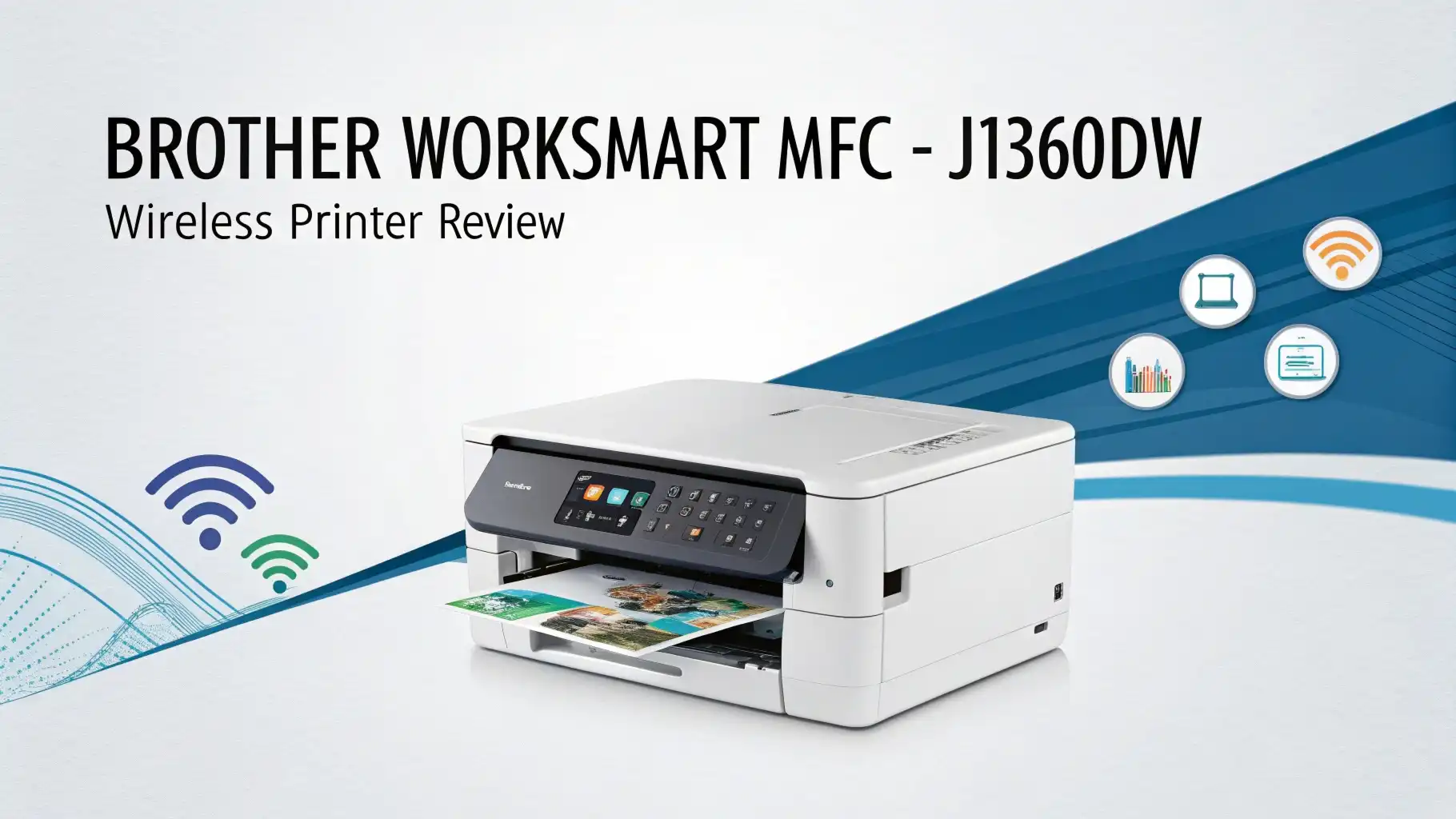
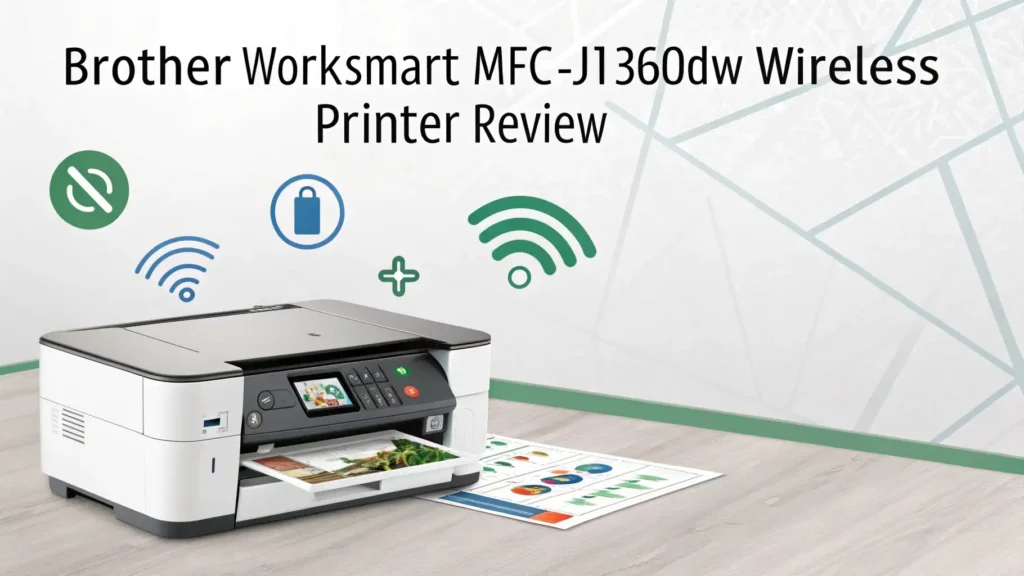
The printer measures approximately 16.1 inches wide, 14.6 inches deep, and 7.1 inches tall, making it compact enough for most desk setups. It weighs around 15 pounds, so moving it between locations isn’t difficult. The white and gray color scheme fits well with modern office aesthetics and doesn’t dominate your workspace visually.
Brother included a 1.8-inch color LCD display on the front panel, which helps you navigate settings and view printer status without connecting to a computer. The control panel features clearly labeled buttons that make operation simple even for less tech-savvy users.
Print Quality and Performance
Print quality matters more than almost any other feature when choosing a printer. The Brother WorkSmart MFC-J1360DW delivers 1200 x 6000 dpi resolution for black and white documents and 4800 x 1200 dpi for color prints. These specifications translate to crisp text and reasonably vibrant colors in everyday use.
Text documents come out sharp and easy to read. Small fonts remain legible, and the black ink produces consistent results across different paper types. Business documents, reports, and school papers all look professional when printed on this machine.
Color printing performs adequately for everyday needs. While this printer won’t replace a professional photo printer, it handles color charts, simple graphics, and casual photos reasonably well. The colors appear somewhat muted compared to higher-end models, but they’re perfectly acceptable for home use.
Print speed reaches up to 12 pages per minute for black and white documents and around 10 pages per minute for color prints. These speeds work well for typical home office tasks. The first page comes out in approximately 8.5 seconds from ready mode, which means you won’t wait long for quick print jobs.
Wireless Connectivity Features
Modern printers need excellent wireless connectivity, and the Brother WorkSmart MFC-J1360DW delivers on this front. The printer supports WiFi 802.11b/g/n connectivity, allowing you to place it anywhere within range of your wireless router without worrying about cable placement.
Setting up the wireless connection takes just a few minutes. The printer’s display guides you through connecting to your home network, and the process works smoothly in most cases. You can also use WiFi Direct to connect devices directly to the printer without joining your main network, which proves useful for guest printing.
Brother’s iPrint&Scan mobile app works with both iOS and Android devices, letting you print documents and photos directly from your smartphone or tablet. The app interface is clean and simple, making mobile printing accessible even for first-time users.
The printer also supports AirPrint for Apple devices and Mopria Print Service for Android, giving you native printing capabilities without installing additional apps. Cloud printing services including Google Cloud Print alternatives work well, allowing you to send documents to your printer from anywhere with internet access.
Top 3 Alternatives for Brother WorkSmart MFC-J1360DW


Scanning and Copying Capabilities
The flatbed scanner on top of the Brother WorkSmart MFC-J1360DW handles letter-sized documents up to 8.5 x 11.7 inches. The scanner delivers optical resolution up to 1200 x 2400 dpi, which captures plenty of detail for typical scanning needs.
Scanning speed works reasonably well for a budget printer. A color page takes approximately 15 seconds to scan at 300 dpi, while black and white documents scan slightly faster. These speeds suit occasional scanning tasks but might feel slow if you regularly scan large document batches.
The Brother iPrint&Scan app makes scanning to mobile devices simple and convenient. You can scan documents directly to your smartphone or tablet, then save them as PDFs or images. This feature proves incredibly useful for quickly digitizing receipts, notes, or other documents while working remotely.
Copying functions work smoothly through the printer’s control panel. You can make up to 99 copies in a single job, and the printer offers basic copy adjustments including enlargement, reduction, and quality settings. The copy speed matches the print speed at around 12 pages per minute for black and white.
Ink Cartridges and Running Costs
Ink costs often determine the true value of a printer over its lifetime. The Brother WorkSmart MFC-J1360DW uses four individual ink cartridges: black, cyan, magenta, and yellow. This configuration lets you replace only the colors that run out rather than discarding cartridges with remaining ink.
Brother offers both standard-yield and high-yield cartridge options. The high-yield cartridges cost more upfront but deliver significantly more pages per cartridge, reducing your cost per page. Standard black cartridges yield approximately 200 pages, while high-yield black cartridges produce around 550 pages.
Color cartridges follow a similar pattern, with standard cartridges yielding about 200 pages each and high-yield versions delivering approximately 550 pages. If you print regularly, investing in high-yield cartridges saves money and reduces the frequency of cartridge changes.
The cost per page works out to roughly 5 to 7 cents for black and white documents and 15 to 18 cents for color pages when using high-yield cartridges. These costs compare favorably to many competing inkjet printers in this price range.
Setup and Installation Process
Getting the Brother WorkSmart MFC-J1360DW up and running takes minimal effort. The printer arrives well-packaged with clear setup instructions included in the box. You’ll need to remove protective materials, install the ink cartridges, load paper, and connect to your network.
Installing the ink cartridges takes just a few minutes. The printer guides you through the process on its LCD screen, and the cartridges click firmly into place when properly installed. The printer then performs an automatic alignment to ensure optimal print quality.
Loading paper into the 150-sheet tray is straightforward. Paper guides adjust to accommodate different paper sizes, and the tray pulls out easily for reloading. Make sure to adjust the guides snugly against the paper stack to prevent misfeeds.
Connecting to your wireless network can be done through the control panel menu. The printer displays available networks, you select yours, enter the password using the on-screen keyboard, and the connection establishes within moments. The WiFi Protected Setup (WPS) option provides an even faster connection method if your router supports it.
Paper Handling and Media Types
The Brother WorkSmart MFC-J1360DW accommodates various paper types and sizes, making it versatile for different printing tasks. The main paper tray holds up to 150 sheets of standard 20-pound copy paper, which suits most home and small office needs.
The printer handles paper sizes from 3 x 5 inches up to legal size (8.5 x 14 inches). This range covers standard letter documents, envelopes, index cards, and photo paper. The adjustable paper guides ensure proper feeding regardless of the media size you’re using.
For envelope printing, you can feed envelopes through the main tray or the manual feed slot. The printer handles standard envelope sizes including #10 business envelopes. You may need to adjust printer settings through the driver to ensure proper envelope orientation.
Photo paper works acceptably with this printer. While results won’t match dedicated photo printers, you can produce decent 4×6 inch snapshots for casual sharing. Use Brother’s recommended photo paper settings in the print driver for best results.
Control Panel and User Interface
The 1.8-inch color LCD screen dominates the control panel and provides clear information about printer status, settings, and operations. The display uses simple icons and text that make navigation intuitive even for users unfamiliar with the printer.
Physical buttons surround the display, each clearly labeled for specific functions. The Home button returns you to the main menu, while dedicated buttons for Copy, Scan, and Fax provide quick access to these functions. Navigation buttons let you move through menus and adjust settings.
The numeric keypad proves useful for entering copy quantities, fax numbers, or WiFi passwords. The buttons have good tactile feedback and are large enough for comfortable pressing without mistakes.
Menu organization follows a logical structure. Settings are grouped by function, and you rarely need to dig through multiple levels to find what you need. The display shows helpful prompts and explanations for various options, reducing the learning curve.
Maintenance and Reliability
Brother printers have earned a reputation for reliability, and the WorkSmart MFC-J1360DW continues this tradition. The printer requires minimal maintenance beyond replacing ink cartridges and occasionally cleaning print heads.
Printhead cleaning can be initiated through the printer’s maintenance menu when you notice print quality degradation. The automated cleaning process takes a few minutes and consumes some ink, but it effectively clears clogged nozzles and restores print quality.
The printer includes a printhead alignment utility that ensures precise ink placement on paper. Running this utility after installing new cartridges or if you notice alignment issues helps maintain optimal print quality.
Paper jams occur infrequently with proper paper loading, but the printer provides easy access to paper paths when jams do happen. Clear diagrams in the user manual show exactly where to look and how to remove stuck paper without damaging components.
Energy Efficiency and Environmental Impact
The Brother WorkSmart MFC-J1360DW includes several features that reduce energy consumption and environmental impact. The printer meets ENERGY STAR certification requirements, indicating it operates efficiently compared to similar models.
Sleep mode activates automatically after a period of inactivity, reducing power consumption to minimal levels while keeping the printer ready for quick wake-up. You can adjust the timing for sleep mode activation through the printer settings menu to balance energy savings with convenience.
The printer consumes approximately 18 watts during active printing and drops to around 2 watts in sleep mode. These numbers translate to minimal impact on your electricity bill even with regular use.
Automatic duplex printing contributes to environmental sustainability by reducing paper consumption. Printing on both sides of each sheet cuts paper usage in half for many documents, saving trees and reducing waste.
Value for Money and Target Audience
The Brother WorkSmart MFC-J1360DW targets home users and small businesses seeking an affordable all-in-one printer with wireless capabilities. The printer typically sells for between $120 and $180, positioning it firmly in the budget-friendly category.
At this price point, you get excellent value considering the feature set. Wireless connectivity, mobile printing, automatic duplex, and multifunction capabilities all come standard. Many competitors at similar prices skimp on one or more of these features.
The low cost per page with high-yield cartridges enhances the value proposition. Over the printer’s lifetime, ink costs often exceed the initial purchase price, so efficient ink usage matters significantly. This Brother model performs well in this crucial area.
Home users will appreciate the simple setup, reliable performance, and versatile functionality. Printing school assignments, family photos, and household documents all work smoothly. The wireless features make it easy for multiple family members to share the printer.
Small businesses and home offices find this printer adequate for moderate printing volumes. The print speed and paper capacity handle typical business needs without frustration. The professional-looking output quality suits most business documents.
Pros and Cons Summary
Understanding both strengths and weaknesses helps you make an informed decision about the Brother WorkSmart MFC-J1360DW.
Major Advantages:
The printer offers reliable performance that you can count on for daily tasks. Brother’s reputation for durability means this printer should serve you well for years. The wireless connectivity options work smoothly and make printing from various devices simple and convenient.
Individual ink cartridges save money by letting you replace only empty colors. The automatic duplex printing reduces paper consumption and costs. The compact size fits comfortably in small spaces without sacrificing functionality.
Mobile printing through multiple methods adds convenience for modern users. The simple setup process gets you printing quickly without technical frustration. The affordable purchase price makes this printer accessible to budget-conscious buyers.
Notable Limitations:
The printer lacks an automatic document feeder, which limits productivity for users who regularly scan multi-page documents. Print speed is adequate but not exceptional compared to some competitors.
Photo print quality falls short of dedicated photo printers and higher-end all-in-ones. The color accuracy is good enough for everyday use but might disappoint users with critical color requirements.
The standard yield cartridges offer relatively low page counts, making high-yield cartridges essential for cost-effective operation. Some users report occasional connectivity hiccups with certain routers, though firmware updates often resolve these issues.
Frequently Asked Questions
Does the Brother WorkSmart MFC-J1360DW work with Chromebook?
Yes, this printer works well with Chromebook devices. You can print using Google Cloud Print alternatives built into Chrome OS, or you can use the Brother iPrint&Scan web app. The setup process is simple, and most Chromebook users report smooth operation without compatibility issues.
Can I use third-party ink cartridges with this printer?
While third-party ink cartridges are available for the Brother WorkSmart MFC-J1360DW, using them may void your warranty and could potentially cause print quality issues or damage. Brother designs their printers to work optimally with genuine Brother ink cartridges. Many users report problems with inconsistent color, clogged print heads, or cartridge recognition errors when using third-party inks.
How long do the ink cartridges typically last?
Ink cartridge lifespan depends on your printing habits and whether you use standard or high-yield cartridges. High-yield black cartridges produce approximately 550 pages, while high-yield color cartridges each yield around 550 pages. Standard cartridges produce roughly 200 pages each. If you print 20 pages per week, a set of high-yield cartridges could last several months.
Is the Brother WorkSmart MFC-J1360DW good for printing photos?
This printer can produce acceptable casual photos on proper photo paper, but it’s not designed as a dedicated photo printer. The output quality works fine for everyday snapshots and family pictures, but photographers seeking professional-grade prints should consider specialized photo printers. Colors appear somewhat muted compared to higher-end models.
How difficult is it to connect the printer to WiFi?
Most users find WiFi setup straightforward and complete it within 5 to 10 minutes. The printer’s LCD display guides you through the process step by step. You select your network, enter the password using the on-screen keyboard, and the printer connects automatically. WPS push-button setup provides an even faster option if your router supports it.
Does this printer support printing from iPhone and iPad?
Yes, the Brother WorkSmart MFC-J1360DW fully supports iOS devices through multiple methods. You can use Apple AirPrint for native printing without installing apps, or download the Brother iPrint&Scan app for additional features. Both methods work reliably and provide good print quality from your iPhone or iPad.
What should I do if the printer shows a paper jam error but there’s no paper stuck?
Phantom paper jam errors occasionally occur with inkjet printers. First, check all paper paths carefully, including the rear access panel and duplex unit. Remove any small paper fragments. Turn off the printer, unplug it for 30 seconds, then restart. This reset often clears false error messages. If the problem persists, contact Brother support for troubleshooting assistance.
Can this printer fax documents without a computer?
Yes, the Brother WorkSmart MFC-J1360DW includes standalone fax functionality that works without a computer connection. You’ll need to connect a phone line to the printer’s telephone jack. You can send and receive faxes using the control panel, and the printer stores received faxes in memory or prints them automatically depending on your settings.