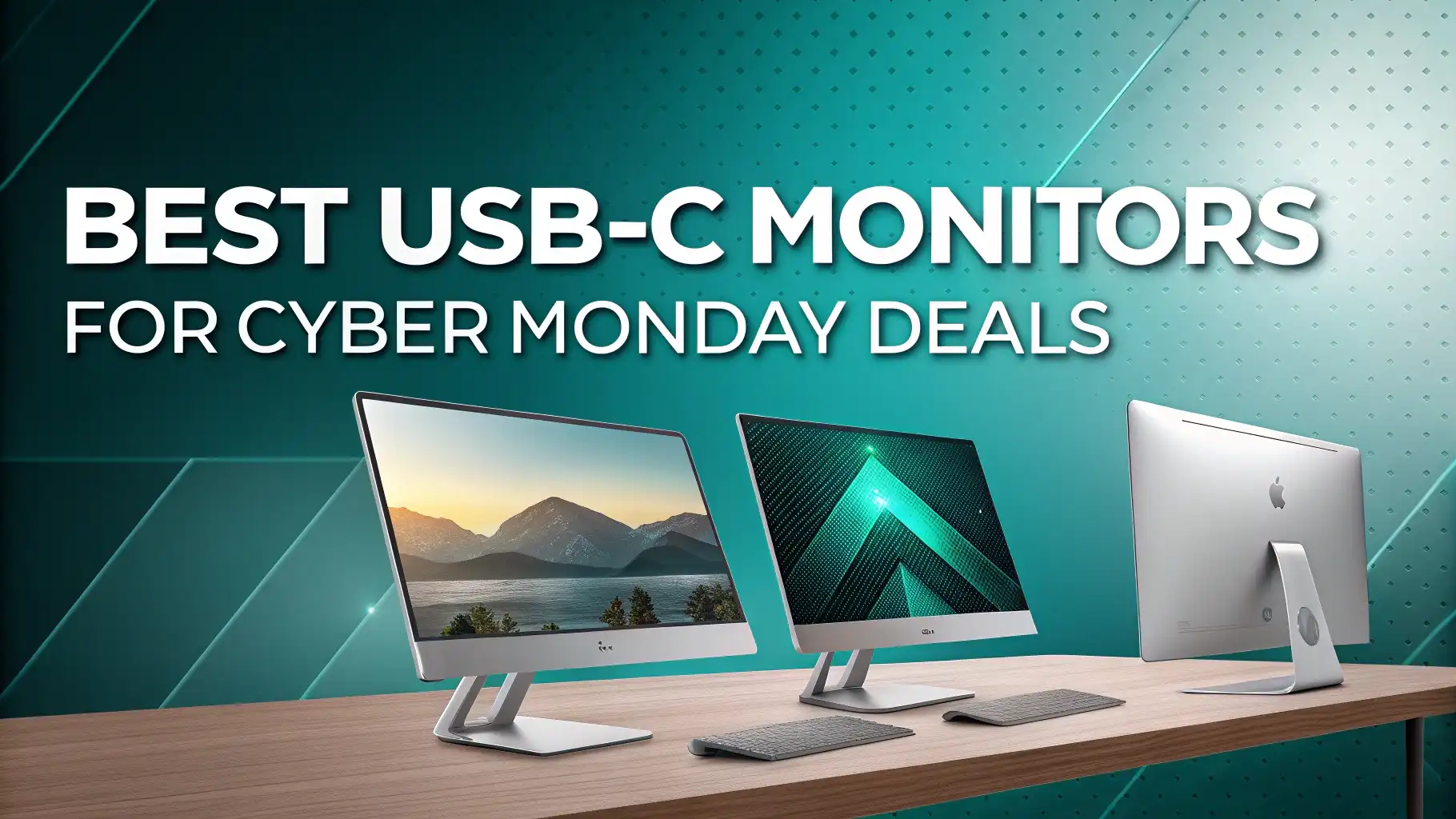
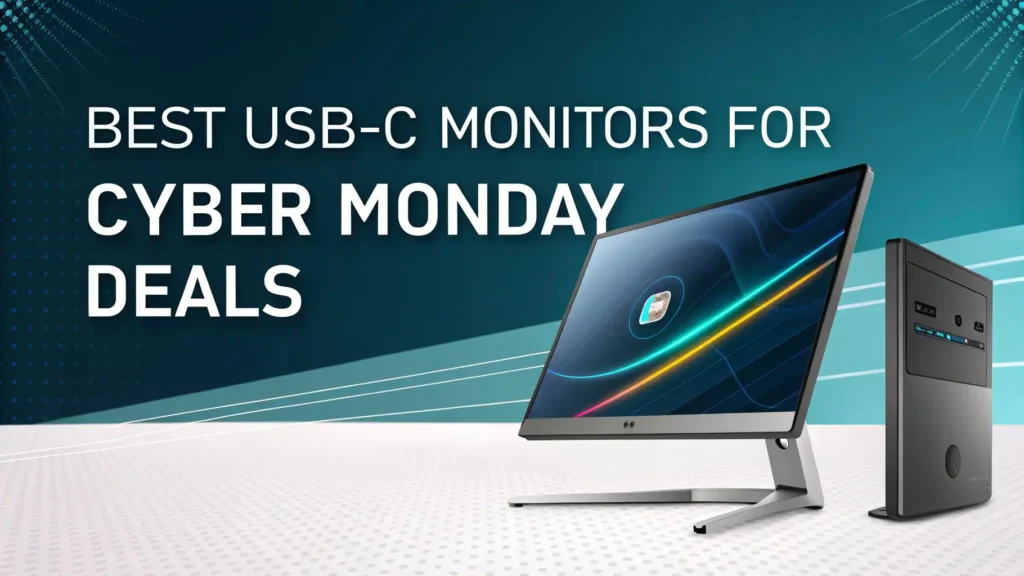
10 Best USB-C Monitors for Cyber Monday Deals 2026
Cyber Monday 2026 brings incredible opportunities to upgrade your workspace without breaking the bank. USB-C monitors have become the go-to choice for modern professionals and gamers who want clean setups with fewer cables.
These versatile displays deliver power, data, and video through a single cable, making your desk clutter-free and productive.
This year’s deals are particularly exciting. Major brands like Dell, LG, BenQ, and ASUS are offering significant discounts on their top-rated USB-C monitors.
Key Takeaways:
- Single Cable Simplicity: USB-C monitors eliminate cable chaos by combining video, data, and power delivery through one connection. This means fewer wires cluttering your desk and faster setup times when you need to connect or disconnect your laptop.
- power delivery Matters: Look for monitors with 65W to 90W power delivery if you want to charge your laptop while working. This feature saves you from plugging in your laptop’s power adapter separately, keeping your workspace even cleaner.
- Resolution Choices Fit Different Needs: 1080p monitors work perfectly for basic office tasks and cost less. 4K displays shine for creative work, photo editing, and detailed tasks where screen real estate matters most.
- Portable Options Expand Your Workspace: If you travel frequently or move between locations, portable USB-C monitors between 15.6 and 16 inches provide a second screen anywhere you go without adding much weight to your bag.
- Cyber Monday Timing Delivers Best Value: This year’s deals show discounts ranging from 20% to 50% off regular prices. Act quickly because popular models sell out fast during this limited shopping window.
Dell S2725QC 27-Inch 4K USB-C Monitor


The Dell S2725QC stands out as an exceptional value in the 4K monitor category. This 27-inch display delivers stunning clarity with its 3840 x 2160 resolution. The 120Hz refresh rate makes everything feel smoother, from scrolling web pages to watching videos.
What makes this monitor special is its versatile USB-C connectivity combined with 65W power delivery. You can charge your laptop while enjoying beautiful visuals.
Pros:
Excellent 4K resolution at 120Hz refresh rate
65W power delivery charges most laptops efficiently
99% sRGB color accuracy suits creative professionals
AMD FreeSync Premium for smooth gaming
Adjustable stand with tilt, swivel, and height options
Cons:
Speakers could be louder for larger rooms
Ash white color may not match all setups
Price point higher than 1080p alternatives
Dell S2722DC 27-Inch QHD Monitor

The Dell S2722DC offers a sweet spot between performance and affordability. This 27-inch monitor features WQHD resolution at 2560×1440, providing sharper images than standard 1080p without the GPU demands of 4K. The 75Hz refresh rate delivers smoother motion than standard 60Hz displays.
USB Type-C connectivity with power delivery simplifies your setup significantly. The built-in speakers handle basic audio needs. The stand provides comprehensive adjustability with height, pivot, swivel, and tilt options. This flexibility helps you find the perfect viewing angle for comfort.
Pros:
WQHD resolution balances sharpness and performance
Full ergonomic adjustments for perfect positioning
USB-C connectivity with convenient power delivery
Competitive pricing for the feature set
Minimal bezels create immersive viewing
Cons:
75Hz refresh rate not ideal for competitive gaming
Built-in speakers adequate but not impressive
No HDR support for enhanced contrast
Sceptre E275W-FP100T 27-Inch IPS Monitor

The Sceptre E275W-FP100T brings incredible value to budget-conscious buyers. This 27-inch IPS display features 100Hz refresh rate and USB Type-C connectivity at a fraction of premium monitor costs. The machine black design looks sleek and professional.
Perfect for everyday computing, this monitor handles office work, web browsing, and casual gaming without issues. The IPS panel ensures good viewing angles from any position. Built-in speakers eliminate the need for external audio devices for basic use.
Pros:
Extremely affordable price point
100Hz refresh rate improves motion smoothness
IPS technology provides wide viewing angles
Multiple connectivity options including USB-C
Built-in speakers save desk space
Cons:
1080p resolution stretched across 27 inches
Limited color accuracy for professional work
Basic stand with minimal adjustments
New model with limited long-term reviews
Lenovo L27m-30 27-Inch FHD Monitor

The Lenovo L27m-30 represents solid everyday performance for home and office use. This 27-inch Full HD monitor operates at 75Hz, providing slightly smoother motion than standard 60Hz displays. AMD FreeSync support ensures tear-free viewing when connected to compatible systems.
Health-conscious design features include Low Blue Light certification to reduce eye strain. The tilt stand allows basic angle adjustments for comfortable viewing. Integrated speakers handle video calls and casual media playback without external audio equipment.
Pros:
Affordable price for 27-inch display
Low Blue Light certification protects eyes
Multiple connectivity ports for flexibility
AMD FreeSync eliminates screen tearing
Decent build quality from trusted brand
Cons:
Basic tilt-only stand limits positioning
1080p resolution on 27 inches shows pixels
Speakers provide basic audio quality only
VGA port feels dated in 2026
LG 27U631A-B 27-Inch QHD Monitor

The LG 27U631A-B delivers premium features at a competitive price. This 27-inch monitor features QHD resolution at 2560 x 1440 pixels. The IPS panel produces accurate colors with wide viewing angles. HDR10 support enhances contrast and color depth in compatible content.
Reading and productivity features include Reader Mode, which adjusts color temperature and brightness for comfortable document viewing. Flicker Safe technology eliminates screen flicker that causes eye fatigue. The 100Hz refresh rate provides smoother scrolling and motion.
Pros:
Sharp QHD resolution for detailed work
HDR10 support improves visual quality
Reader Mode perfect for document-heavy tasks
100Hz refresh rate enhances smoothness
IPS panel ensures accurate colors
Cons:
15W power delivery insufficient for laptops
Limited ergonomic adjustments
Average response time for fast gaming
Speakers not included in base model
BenQ GW2786TC 27-Inch Office Monitor

The BenQ GW2786TC focuses on office productivity and eye comfort. This 27-inch 1080p monitor features a unique Coding Mode that adjusts colors and contrast for easier reading of programming code. The IPS panel delivers consistent colors from any viewing angle.
Advanced eye-care technology includes adaptive brightness that adjusts based on ambient lighting. The height-adjustable stand helps you find the perfect ergonomic position. A noise-cancelling microphone built into the monitor improves video call quality.
Pros:
Coding Mode optimized for programmers
Adaptive brightness reduces eye strain
Height-adjustable stand improves ergonomics
USB hub adds convenient ports
Noise-cancelling mic enhances calls
Cons:
1080p resolution may feel limited
Higher price than basic 1080p monitors
White finish shows dust more easily
Specialized features unused by general users
BenQ GW2486TC 24-Inch Office Monitor

The BenQ GW2486TC offers compact productivity for smaller workspaces. This 24-inch 1080p monitor packs impressive features into a space-saving design. The IPS panel ensures accurate colors and wide viewing angles essential for professional work.
The same eye-care technologies from its larger sibling appear here. Coding Mode, adaptive brightness, and flicker-free backlighting all help reduce eye fatigue. The height-adjustable stand provides ergonomic comfort despite the compact size.
Pros:
Perfect size for smaller desks
Extensive eye-care technologies
Height-adjustable for proper ergonomics
Strong color accuracy for IPS panel
Built-in noise-cancelling microphone
Cons:
24-inch size limits screen real estate
1080p resolution standard for this size
Premium price for screen size
Limited USB-C power delivery
MNN 4K Portable Monitor 15.6-Inch

The MNN 4K Portable Monitor brings desktop-quality visuals on the go. This 15.6-inch display packs genuine 4K resolution at 3840×2160 pixels. The 100% Adobe RGB color coverage makes it suitable for professional photo editing anywhere.
Ultra-portable design weighs just 1.4 pounds with a slim 0.3-inch profile. The smart cover protects the screen during travel and doubles as a stand. Built-in speakers eliminate the need for external audio devices. HDR support enhances visual quality in compatible content.
Pros:
True 4K resolution in portable format
100% Adobe RGB for professional work
Extremely lightweight and slim design
Versatile connectivity options
Smart cover provides protection and stand
Cons:
Smaller screen size limits workspace
Premium price for portable monitor
Requires USB-C power from device
Build quality lighter than desktop monitors
ASUS ZenScreen 16-Inch Portable Monitor

The ASUS ZenScreen MB169CK provides affordable portable productivity. This 16-inch Full HD monitor uses IPS technology for consistent colors and wide viewing angles. Dual USB-C ports offer connection flexibility, while mini-HDMI expands compatibility with older devices.
Eye care features include flicker-free backlighting and blue light filters that reduce strain during extended use. The anti-glare surface minimizes reflections in bright environments. A versatile 360-degree kickstand provides stable positioning on any surface.
Pros:
Affordable price for portable display
Three-year warranty provides peace of mind
360-degree kickstand offers positioning flexibility
Eye care features reduce fatigue
Dual USB-C ports increase compatibility
Cons:
1080p resolution adequate but not exceptional
Smaller than some portable alternatives
Speakers not included in design
Performance dependent on source device
ASUS ProArt Display PA278CV 27-Inch Monitor

The ASUS ProArt Display PA278CV targets creative professionals demanding accuracy. This 27-inch WQHD monitor covers 100% of sRGB and Rec. 709 color spaces. The Delta E less than 2 rating means colors appear incredibly accurate right out of the box. Calman verification confirms this professional-grade color performance.
USB-C connectivity includes a USB hub for connecting peripherals directly to the monitor. DisplayPort daisy-chaining allows multi-monitor setups with cleaner cable management. The height-adjustable stand helps maintain proper posture during long work sessions.
Pros:
Exceptional color accuracy verified by Calman
100% coverage of professional color spaces
USB hub adds convenient connectivity
DisplayPort daisy-chaining for multi-monitor setups
Height-adjustable stand improves ergonomics
Cons:
Higher price reflects professional features
60Hz refresh rate not ideal for gaming
Requires calibration for absolute accuracy
Larger footprint than compact alternatives
Understanding USB-C Monitor Benefits for Your Workflow
USB-C monitors revolutionize how we connect and work with displays. Traditional monitors require separate cables for video, USB peripherals, and laptop charging. USB-C combines all these functions through a single cable. This simplification reduces desk clutter and makes connecting or disconnecting your laptop incredibly quick.
Power delivery capabilities vary significantly between models. Budget monitors may offer 15W power delivery, which charges phones and tablets but not laptops. Mid-range options typically provide 65W, sufficient for most laptops during normal use. Premium models offer 90W or more, which handles even power-hungry laptops during intensive tasks.
The convenience extends beyond simple connections. Many USB-C monitors include USB hubs built into the display. This lets you connect keyboards, mice, external drives, and other peripherals directly to the monitor. When you unplug your laptop, all these connections disconnect automatically. When you reconnect, everything works instantly without plugging in multiple devices.
DisplayPort Alt Mode enables USB-C to carry high-resolution video signals. This technology supports 4K resolution at 60Hz or higher refresh rates on compatible systems. Some newer monitors even support higher resolutions or refresh rates through USB-C alone.
What Are the Key Differences Between 1080p, QHD, and 4K USB-C Monitors?
Resolution determines how much detail your monitor displays and how much workspace you have for multiple windows. Understanding these differences helps you choose the right monitor for your needs and budget.
1080p monitors at 1920×1080 resolution work well for basic office tasks, web browsing, and casual gaming. On 24-inch displays, this resolution looks sharp and clear. On 27-inch screens, individual pixels become more visible, though many people don’t mind. These monitors cost less and require less graphics processing power from your computer.
QHD or 1440p monitors at 2560×1440 resolution offer the sweet spot for many users. You get significantly more screen space than 1080p without the performance hit of 4K. Text appears crisp and clear even on 27-inch displays. This resolution suits professional work, content creation, and gaming equally well.
4K monitors at 3840×2160 resolution provide the sharpest images and most workspace. Fine details in photos and videos look stunning. You can fit multiple windows side by side comfortably. However, 4K requires more powerful graphics hardware and costs more. For creative professionals working with high-resolution content, 4K becomes essential rather than optional.
How Much Power Delivery Do You Really Need?
Power delivery through USB-C varies widely between monitors. Understanding your requirements prevents disappointment after purchase. Different devices need different amounts of power to charge while in use.
15W to 25W power delivery works for smartphones, tablets, and very low-power devices. This amount won’t charge most laptops or will charge them extremely slowly. Some laptops will drain battery even when connected to these low-power monitors during use.
60W to 65W power delivery handles most mainstream laptops during typical office work. This includes many Dell XPS, HP Spectre, and MacBook Air models. The laptop charges while you work on documents, browse the web, and run standard applications.
90W to 100W power delivery satisfies power-hungry laptops including MacBook Pro 16-inch and gaming laptops during lighter tasks. This higher wattage ensures your laptop charges reliably even during video calls or moderate multitasking.
Check your laptop’s power adapter wattage to determine your needs. If your laptop came with a 65W adapter, a monitor with 65W power delivery works perfectly. If your laptop uses a 96W adapter, look for monitors offering at least 90W to ensure adequate charging during use.
Can USB-C Monitors Work with Older Laptops?
Many people wonder whether USB-C monitors work with laptops that have older connection types. The answer involves understanding what USB-C actually does and what alternatives exist.
Modern USB-C monitors typically include traditional inputs like HDMI and DisplayPort alongside USB-C. This means you can connect older laptops using HDMI cables while newer devices use USB-C. However, connecting through HDMI means you lose the single-cable simplicity and power delivery features.
USB-C to DisplayPort or HDMI adapters can connect older laptops to USB-C monitors in some cases. However, not all USB-C ports support video output. The port needs DisplayPort Alt Mode capability. Check your laptop specifications to confirm whether its USB-C ports support video.
Power delivery won’t work when connecting through HDMI or DisplayPort. You’ll need to plug in your laptop’s power adapter separately. The convenience factor drops significantly without USB-C, though you still get the monitor’s display quality and features.
For maximum benefit from USB-C monitors, ensure your laptop has USB-C ports with DisplayPort Alt Mode and power delivery support. Most laptops made after 2020 include these capabilities, but older models may lack them.
Frequently Asked Questions
Do all USB-C monitors charge laptops?
Not all USB-C monitors include power delivery capabilities. Budget models may use USB-C only for video and data, providing no charging function. Check the specifications for power delivery wattage before assuming charging support. Most monitors that do charge laptops offer between 60W and 90W of power delivery.
Can I connect multiple USB-C monitors to one laptop?
This depends on your laptop’s capabilities and the number of USB-C ports it has. Some laptops support daisy-chaining monitors through DisplayPort Multi-Stream Transport. Others require separate USB-C ports for each monitor. Check your laptop specifications for multi-monitor support limitations. Most laptops support at least two external displays total.
What refresh rate should I choose for office work?
Standard 60Hz refresh rates work perfectly fine for office tasks, document editing, and web browsing. Higher refresh rates like 120Hz or 144Hz make scrolling feel smoother and benefit gaming significantly. For pure productivity work, refresh rate matters less than resolution and color accuracy. Save money by choosing 60Hz unless you also game.
How important is color accuracy for photo editing?
Color accuracy becomes critical if you print photos, create graphics for clients, or work professionally with visual content. Look for monitors covering 100% of sRGB color space with Delta E ratings under 2. Casual photographers and hobbyists can work with less accurate displays. Professional work demands professionally calibrated monitors with wide color gamuts.
Will USB-C monitors work with gaming consoles?
Most USB-C monitors include HDMI inputs that work perfectly with PlayStation, Xbox, and Nintendo Switch consoles. Connect through HDMI instead of USB-C. Some features like variable refresh rate and HDR may work depending on the monitor specifications. Check for gaming-specific features if console gaming matters to your setup.
Do USB-C monitors require special drivers?
USB-C monitors typically work without installing special drivers. Modern operating systems include plug-and-play support. However, some monitors include optional software for advanced features like display splitting, color profiles, or picture-in-picture modes. This software enhances functionality but isn’t required for basic operation.