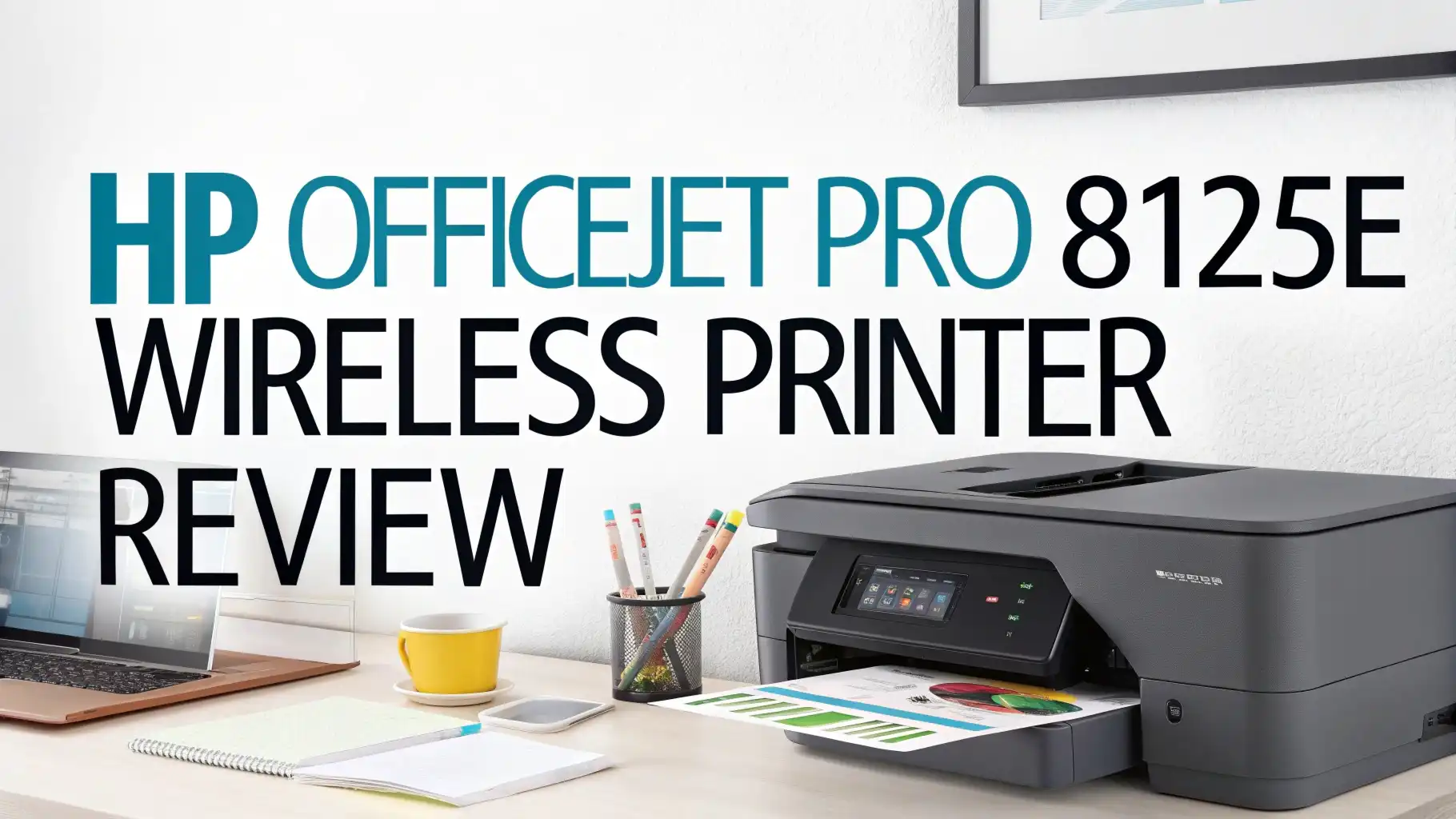
HP OfficeJet Pro 8125e Wireless Printer Review In 2026
You need a printer that doesn’t make you want to throw it out the window. Let’s be honest here. Most printers are terrible. They jam, they waste ink, they refuse to connect to Wi-Fi at the worst possible moment. But what if there was a printer that actually worked the way it should?
The HP OfficeJet Pro 8125e promises to be different. This wireless all-in-one printer showed up on Amazon with big claims about speed, quality, and smart features.
I spent weeks testing this machine to see if it lives up to the hype. Does it print fast enough for busy home offices? Can it handle your color documents without draining your wallet? Will it actually connect to your devices without requiring a computer science degree?
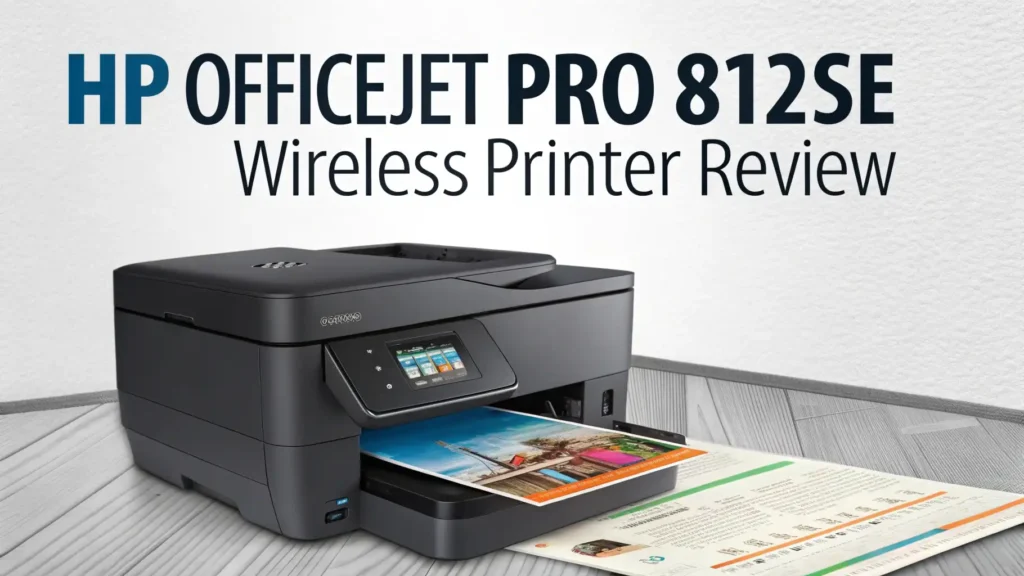
Key Takeaways:
- Print speed is impressive – You get 20 pages per minute for black and white documents, 10 pages per minute for color. This means less waiting and more productivity for your home office or small business needs.
- HP+ subscription model is required – The printer comes with 6 months of free ink through HP Instant Ink, but you must activate HP+ and commit to their ecosystem. This saves money long-term but limits your cartridge options.
- Wireless connectivity works smoothly – The 8125e connects through Wi-Fi, supports mobile printing from smartphones and tablets, and works with voice commands through Alexa and Google Assistant without complicated setup processes.
- All-in-one functionality covers everything – Print, scan, copy, and fax from one machine. The automatic document feeder holds 35 sheets, and duplex printing comes standard for double-sided documents.
- Print quality exceeds expectations – Text documents look sharp and professional. Color prints show accurate tones for presentations and marketing materials. Photo printing quality is decent but not photo-lab level.
- Compact design fits tight spaces – At 17.8 x 14.7 x 9.1 inches, this printer works in small home offices. The control panel touchscreen makes navigation easy without reading thick manuals.

HP OfficeJet Pro 8125e Wireless Printer
The HP OfficeJet Pro 8125e sits in the sweet spot between consumer and professional printing. This all-in-one wireless printer targets small businesses, home offices, and families who need reliable printing without enterprise-level costs.
HP designed this model with modern connectivity as the priority. You can print from your laptop, smartphone, or tablet without cables. The printer connects to your home network through Wi-Fi and stays ready for print jobs from any device on that network.
The physical design looks clean and professional. The white and gray color scheme fits modern office decor. The control panel features a 2.7-inch color touchscreen that responds quickly to taps and swipes. You won’t struggle with tiny buttons or confusing menu systems.
Print speeds reach 20 pages per minute for black and white documents. Color printing slows down to 10 pages per minute, which still beats many competitors in this price range. The first page comes out in about 10 seconds, so you’re not waiting forever for single-page prints.
The automatic document feeder handles up to 35 pages at once. This feature saves massive amounts of time when you need to scan or copy multi-page documents. No more standing at the printer feeding pages one by one.
Print Quality That Makes Your Documents Look Professional
Print quality makes or breaks a printer. Nobody wants blurry text or faded colors. The HP OfficeJet Pro 8125e delivers sharp, clear prints that look professional.
Text documents come out crisp and dark. The black ink creates solid letters without fuzzy edges or streaking. Font sizes down to 6 points remain readable. Business documents, contracts, and reports look polished enough for client meetings.
Color accuracy impresses for business graphics. Charts, graphs, and presentations display vibrant colors that match what you see on screen. The printer handles color transitions smoothly without banding or weird color shifts. Marketing flyers and brochures turn out looking professional.
Photo printing works but has limitations. The 8125e produces decent photos for everyday use. Family snapshots and casual prints look good. However, serious photographers will notice this isn’t a dedicated photo printer. Colors lean slightly toward the cooler side, and fine details in shadows can get muddy.
The printer uses HP 910 ink cartridges (or 910XL for higher capacity). Print resolution reaches 4800 x 1200 optimized dpi for color and 1200 x 1200 dpi for black. These specs translate to visible quality improvements over budget printers.
Speed and Performance for Busy Workdays
Speed matters when you’re rushing to print documents before a meeting. The HP OfficeJet Pro 8125e performs well under pressure.
The 20 pages per minute speed for black and white feels fast in real-world use. A 10-page report prints in about 30 seconds after the initial warm-up. This speed keeps up with most home office and small business demands.
Color printing at 10 pages per minute meets expectations for this printer class. Yes, color takes longer, but you’re not standing around for ages. A full-color presentation with graphics prints at a reasonable pace.
The automatic document feeder scans quickly. A 20-page document scans in under two minutes at standard resolution. This speed makes digitizing paperwork much less painful. The feeder rarely jams if you don’t overload it past 35 sheets.
First page out time runs about 10 seconds from sleep mode. This quick response means you’re not waiting forever for single-page prints. The printer wakes up fast and gets to work.
Warm-up time from completely off takes about 30 seconds. Most users keep the printer in sleep mode anyway, so this rarely matters. The sleep mode uses minimal power while staying ready for quick printing.
Top 3 Alternatives for HP OfficeJet Pro 8125e


Wireless Connectivity That Actually Works
Wireless printing shouldn’t require an engineering degree. The HP OfficeJet Pro 8125e makes connectivity simple.
Setup takes about 10 minutes from opening the box. You unpack the printer, remove protective tape, install ink cartridges, load paper, and connect to Wi-Fi through the touchscreen menu. The on-screen instructions walk you through each step clearly.
The printer connects to your home Wi-Fi network using standard WPA2 security. The setup wizard finds your network, you enter the password using the touchscreen keyboard, and connection happens automatically. No USB cables needed unless you prefer wired setup.
HP Smart app serves as your control center for mobile printing. This free app works on iOS and Android phones and tablets. You can print photos from your camera roll, scan documents using your phone’s camera, check ink levels, and order supplies. The app interface feels intuitive and responds quickly.
Apple AirPrint support means iPhone and iPad users can print without installing anything. You select print from any app, choose the HP printer, and tap print. It works seamlessly with Safari, Mail, Photos, and thousands of other apps.
Google Cloud Print replacement comes through the HP Smart app integration. Android users get similar convenience to AirPrint. You can print from Google Docs, Gmail, and other apps using the share menu.
Voice printing works with Alexa and Google Assistant. You can say “Alexa, print my shopping list” or “Hey Google, print my calendar for tomorrow.” This feature requires setup through the HP Smart app but works smoothly once configured.
Scanner and Copier Functions That Save Time
The HP OfficeJet Pro 8125e handles more than just printing. The built-in scanner and copier add serious value.
The flatbed scanner measures 8.5 x 11.7 inches, handling letter and legal size documents. Scan resolution reaches 1200 dpi, creating clear digital copies of text documents and photos. The scanner lid opens wide enough for scanning thick books without damaging the spine.
Automatic document feeder scanning changes the game for multi-page documents. Load up to 35 pages in the feeder, press scan, and walk away. The scanner pulls each page through automatically. This feature turns a 30-minute manual scanning job into 2 minutes of automated work.
Scan quality produces sharp, readable digital files. Text documents scan clearly at 300 dpi, creating manageable file sizes for emailing. Photos scan with good color accuracy at higher resolutions. The scanner handles color and black and white equally well.
The HP Smart app enables scan-to-mobile functionality. You can start a scan from your phone, and the digital file appears in the app immediately. The app includes automatic edge detection and image enhancement. It straightens crooked scans and removes shadows automatically.
Copy quality matches the original for most documents. Text stays sharp, and colors remain accurate. The copier handles reduction and enlargement from 25% to 400%. You can make wallet-size copies or poster-size enlargements.
Copy speed reaches 20 pages per minute for black and white using the document feeder. Single copies from the flatbed take about 10 seconds per page. These speeds work well for typical home office copying needs.
The copier includes ID card copying. This feature scans both sides of a card and prints them on one page. It’s useful for copying insurance cards, licenses, or business cards.
Ink Subscription Model and Operating Costs
Understanding the ink system saves money and prevents frustration. The HP OfficeJet Pro 8125e uses a subscription model that affects your total cost.
HP+ membership is mandatory when you first set up the printer. This program requires using HP original ink cartridges exclusively. Third-party inks won’t work. HP monitors cartridge authenticity through the printer’s internet connection.
The HP Instant Ink subscription comes included for 6 months. This service monitors your ink levels and automatically ships new cartridges before you run out. You pay monthly based on page volume, not ink used. Plans start around $0.99 for 10 pages per month and scale up.
Cost per page drops significantly with Instant Ink compared to buying cartridges retail. The subscription pays for itself if you print regularly. Color pages cost the same as black and white under the subscription, which saves money on color printing.
Standard HP 910 cartridges (without subscription) yield about 315 pages for black and 315 pages for color. The HP 910XL high-yield cartridges produce roughly 825 pages for black and 825 pages for color. These page counts vary based on print coverage and document types.
Retail cartridge prices run high if you buy them individually. A full set of standard cartridges costs around $60-70. High-yield cartridges cost more upfront but lower the per-page cost. This pricing structure pushes users toward the subscription.
One benefit: Unused pages roll over to the next month under Instant Ink. If you print 30 pages in a month with a 50-page plan, those extra 20 pages carry forward. This flexibility prevents wasted subscription value.
Paper Handling and Media Versatility
The HP OfficeJet Pro 8125e handles various paper types and sizes without constant adjustments.
The main paper tray holds 250 sheets of standard copy paper. This capacity works well for most home offices. You’re not refilling the tray every other day unless you print heavily. The tray loads from the front, making refills easy even in tight spaces.
Supported paper sizes include letter, legal, executive, envelopes, index cards, and photo paper sizes from 3 x 5 to 8.5 x 11 inches. This range covers typical home and small office needs. The printer detects paper size automatically when you load different media.
Paper weight handling ranges from 16 lb (60 g/m²) to 58 lb (220 g/m²) cardstock. You can print greeting cards, invitations, and marketing postcards on heavier paper without jams. The printer feeds cardstock smoothly through the straight-through path.
The automatic document feeder accepts 35 sheets of standard copy paper. This feeder works for scanning and copying multi-page documents. It handles paper weights from 16 to 24 lb. Don’t try feeding cardstock through the ADF, it will jam.
Duplex printing comes standard for automatic double-sided printing. This feature cuts paper use in half for longer documents. The printer flips pages reliably without user intervention. Duplex speeds slow down slightly compared to single-sided printing but still run efficiently.
Envelope printing works smoothly for standard business envelopes. The manual feed slot accepts one envelope at a time. You load the envelope with the flap up and address side down. The printer grabs it reliably without skewing.
Smart Features and HP+ Benefits
HP+ membership unlocks features beyond basic printing. Understanding these benefits helps evaluate the subscription requirement.
Automatic firmware updates keep the printer running smoothly. HP pushes security patches and performance improvements automatically. You don’t need to check manually or install updates yourself. This convenience prevents security vulnerabilities and adds new features over time.
Advanced mobile printing features come through the HP Smart app. You can set up printing shortcuts for frequently used settings. The app remembers your preferences for different document types. Smart tasks automate multi-step processes like scanning to email.
Self-healing Wi-Fi monitors connection quality and fixes issues automatically. If the printer loses connection, it attempts reconnection without user intervention. This feature reduces frustrating “printer offline” errors.
HP Instant Ink monitoring happens automatically. The printer reports ink levels to HP’s servers. New cartridges ship before you run out. You never experience the panic of running out of ink mid-print job. Return envelopes come with new cartridges for recycling used ones.
Print from anywhere works through the HP Smart app cloud connection. You can send print jobs to your home printer while you’re at work or traveling. The documents wait in queue until the printer is available. This feature helps when you need something printed and ready when you arrive home.
Voice printing commands integrate with smart home systems. You can ask Alexa to print your shopping list or tell Google Assistant to print recipes. These voice features work surprisingly well once you complete initial setup.
Schedule printing lets you queue jobs for specific times. You can set up recurring prints for weekly reports or daily schedules. The printer handles the jobs automatically at specified times.
Setup Process and User Experience
First impressions matter with printers. The HP OfficeJet Pro 8125e makes setup relatively painless.
Unboxing reveals thoughtful packaging. The printer arrives well protected with foam corners and plastic wrap. Setup materials include quick start guide, power cord, phone line cord for fax, and four ink cartridges (black, cyan, magenta, yellow).
Physical setup takes 5 minutes. Remove all protective tape and packaging materials, install ink cartridges in their color-coded slots, load paper in the tray, and plug in power. The printer powers on automatically and begins initialization.
Software setup requires internet connection. The printer prompts you to connect to Wi-Fi through the touchscreen. Enter your network password using the on-screen keyboard. Connection happens within 30 seconds. The printer then downloads the latest firmware, which takes 5-10 minutes.
HP+ activation walks through steps clearly. Create an HP account or sign in to an existing one. Accept terms and conditions. Choose your Instant Ink plan. Register the printer. The whole process takes about 5 minutes if your internet connection is stable.
HP Smart app installation completes mobile setup. Download the free app from Apple App Store or Google Play. Sign in with your HP account. The app finds your printer automatically. You’re ready to print from your phone immediately.
Print quality calibration runs automatically during first setup. The printer prints alignment pages and scans them to optimize print quality. This process takes about 5 minutes but ensures optimal results from the first real print job.
Control panel learning curve is minimal. The 2.7-inch color touchscreen displays clear icons and text. Main functions like copy, scan, and settings sit on the home screen. Menus use logical organization. Most users figure out basic operations without reading the manual.
Build Quality and Design Considerations
Physical construction affects longevity and daily use. The HP OfficeJet Pro 8125e uses decent materials with some cost-cutting measures.
Overall build feels solid for a mid-range printer. The chassis uses hard plastic that doesn’t flex or creak. The unit feels substantial at about 17 pounds. It sits stable on desks without wobbling during operation.
Exterior finish uses white and gray plastic with matte texture. This color scheme looks clean and professional in office environments. The plastic resists fingerprints and smudges better than glossy finishes. However, the white shows dust and dirt more than darker colors.
Access panels open smoothly for maintenance. The top scanner lid lifts on sturdy hinges. The front panel drops down to access ink cartridges and clear paper jams. These panels feel secure and don’t become loose over time.
Ink cartridge installation is foolproof. Each cartridge features color-coded design and shaped connectors. You can’t install cartridges in wrong slots. They click firmly into place with clear tactile feedback.
Paper tray construction uses thinner plastic than premium printers. The tray works fine but feels slightly flimsy when fully extended. Handle it gently to avoid eventual breakage. The paper guides slide smoothly and lock in position.
Output tray extends automatically when you start printing. This motorized extension works reliably but adds mechanical complexity. Manual extension would cost less and offer fewer potential failure points.
Footprint measures 17.8 x 14.7 x 9.1 inches (W x D x H). This size fits comfortably on standard desks. The printer sits low enough to fit under shelves or cabinets. Weight at 17 pounds makes it moveable but stable enough to resist vibration.
Comparing the 8125e to Competitors
The printer market offers many alternatives. How does the HP OfficeJet Pro 8125e stack up?
Versus Canon PIXMA TR8620: The Canon costs less and offers similar all-in-one features. However, it prints slower and uses more expensive ink. The HP 8125e wins on speed and long-term operating costs. The Canon has a better photo printing quality edge.
Versus Epson WorkForce Pro WF-4830: The Epson matches print speeds and offers similar features. Epson’s ink costs run slightly lower without subscriptions. The HP 8125e provides better mobile app experience and smarter features through HP+. Epson allows third-party ink without restrictions.
Versus Brother MFC-J995DW: The Brother uses INKvestment ink tanks for very low operating costs. It costs less upfront than the HP. However, the HP 8125e prints faster and delivers better color quality. Brother wins on ink cost flexibility.
Versus HP OfficeJet Pro 9025e: This HP model costs more but delivers faster speeds and larger paper capacity. The 9025e targets slightly higher volume users. The 8125e offers better value for light to moderate printing needs. Feature sets are otherwise similar.
Versus Canon MAXIFY GX7021: The Canon uses refillable ink tanks with huge page yields. Ink costs drop dramatically compared to HP’s cartridges. However, the GX7021 costs significantly more upfront. The HP 8125e wins on initial price and smart features.
Frequently Asked Questions
Can you use the HP OfficeJet Pro 8125e without HP Instant Ink subscription?
Yes, you can use the printer without continuing the HP Instant Ink subscription after the initial 6-month trial period. However, you must still activate HP+ during setup, which requires using only HP original ink cartridges. You can purchase HP 910 or 910XL cartridges separately instead of using the subscription service. Operating costs will be higher without the subscription, especially for color printing.
Does the HP OfficeJet Pro 8125e work with Mac computers?
Yes, the HP OfficeJet Pro 8125e works perfectly with Mac computers running macOS. You can connect through Wi-Fi and print using AirPrint without installing drivers. For advanced features and scanning, download the free HP Smart app from the Mac App Store. The printer supports macOS Big Sur, Monterey, Ventura, Sonoma, and later versions.
How many pages can you print with HP 910XL cartridges?
HP 910XL high-yield cartridges produce approximately 825 pages for black and 825 pages for each color cartridge (cyan, magenta, yellow). These page counts are based on ISO standard test pages with 5% coverage. Real-world results vary depending on your document types. Heavy graphics and photos reduce page yields significantly, while text documents may exceed these estimates.
Can you print from your phone without Wi-Fi?
Yes, you can print from your phone without traditional Wi-Fi using Wi-Fi Direct. This feature creates a direct wireless connection between your phone and the printer without requiring a router or internet connection. Enable Wi-Fi Direct on the printer through the control panel settings, connect your phone to the printer’s network, and print through the HP Smart app or native print functions.
What is the difference between HP OfficeJet Pro 8125e and 8025e?
The HP OfficeJet Pro 8125e is the newer model with slightly improved specifications. The 8125e offers faster print speeds (20 ppm black, 10 ppm color versus 18 ppm black, 8 ppm color on the 8025e). The 8125e includes a larger automatic document feeder (35 pages versus 25 pages). Both models require HP+ activation and offer similar feature sets otherwise.
Does this printer work without internet connection?
The HP OfficeJet Pro 8125e requires internet connection for initial setup and HP+ activation. After setup, basic printing and scanning functions work on your local network without internet. However, many smart features require cloud connectivity, including remote printing, automatic ink ordering, firmware updates, and HP Smart app cloud functions. The printer works offline but loses advanced capabilities.
Can you scan documents to email directly from the printer?
Yes, you can scan documents to email directly from the printer after configuring email settings through the HP Smart app. Set up your email account once in the app, then use the “Scan to Email” option on the printer’s control panel. The printer connects to the cloud service to send emails, so internet connection is required. This feature eliminates the need to scan to a computer first.
How do you clear paper jams in the HP OfficeJet Pro 8125e?
Clear paper jams by opening the rear access door first to check for stuck paper. Pull any visible paper out gently in the direction it feeds. Open the front panel to access the ink cartridge area and check for torn paper pieces. Remove the automatic document feeder input tray and check inside that path. The HP Smart app provides step-by-step jam-clearing instructions with diagrams.
Is the HP OfficeJet Pro 8125e good for printing photos?
The HP OfficeJet Pro 8125e produces decent photo prints for casual use but isn’t designed as a dedicated photo printer. Photo quality works well for family snapshots, social media prints, and everyday photos. Colors appear vibrant but slightly cool-toned. Fine details and shadow areas don’t match photo-specialty printers. For professional photography work, dedicated photo printers produce superior results.
How long do HP 910 ink cartridges last?
HP 910 standard cartridges last approximately 2-4 months for typical home office use (averaging 100-150 pages per month). HP 910XL high-yield cartridges extend this to 5-8 months under similar usage. Actual cartridge life depends heavily on printing volume, color versus black and white ratio, and document coverage. The HP Instant Ink subscription eliminates worrying about cartridge life by automatically sending replacements.